Two-way contact sharing
Collect Leads while sharing your contact data.
- What is two-way contact sharing, and how will I benefit?
- How does two-way contact sharing work?
- Export Leads to CRM
- How do I enable two-way contact sharing for my Business Card?
What is two-way contact sharing, and how will I benefit?
Imagine you are at a business event, want to collect leads but also want to share your own contact information without too much of a hassle. Our two-way contact exchange feature allows exactly that: The quick and effortless sharing of contact information - going both ways.
How does two-way contact sharing work?
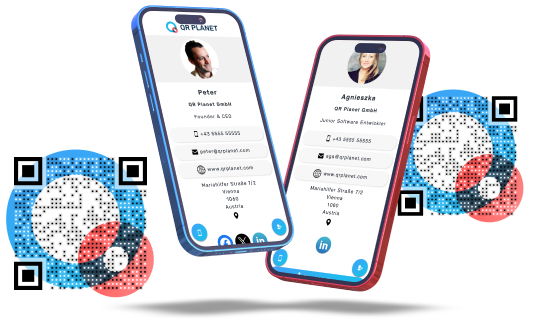
Your prospects scan the QR Code linked to your Digital Business Card. Apart from the prospects now being able to add your contact information to their address books, they optionally may enter their contact information on the Digital Business Card as well. Each prospect's contact information will then be saved as a new lead in your account and you can contact them anytime.
Export Leads to CRM
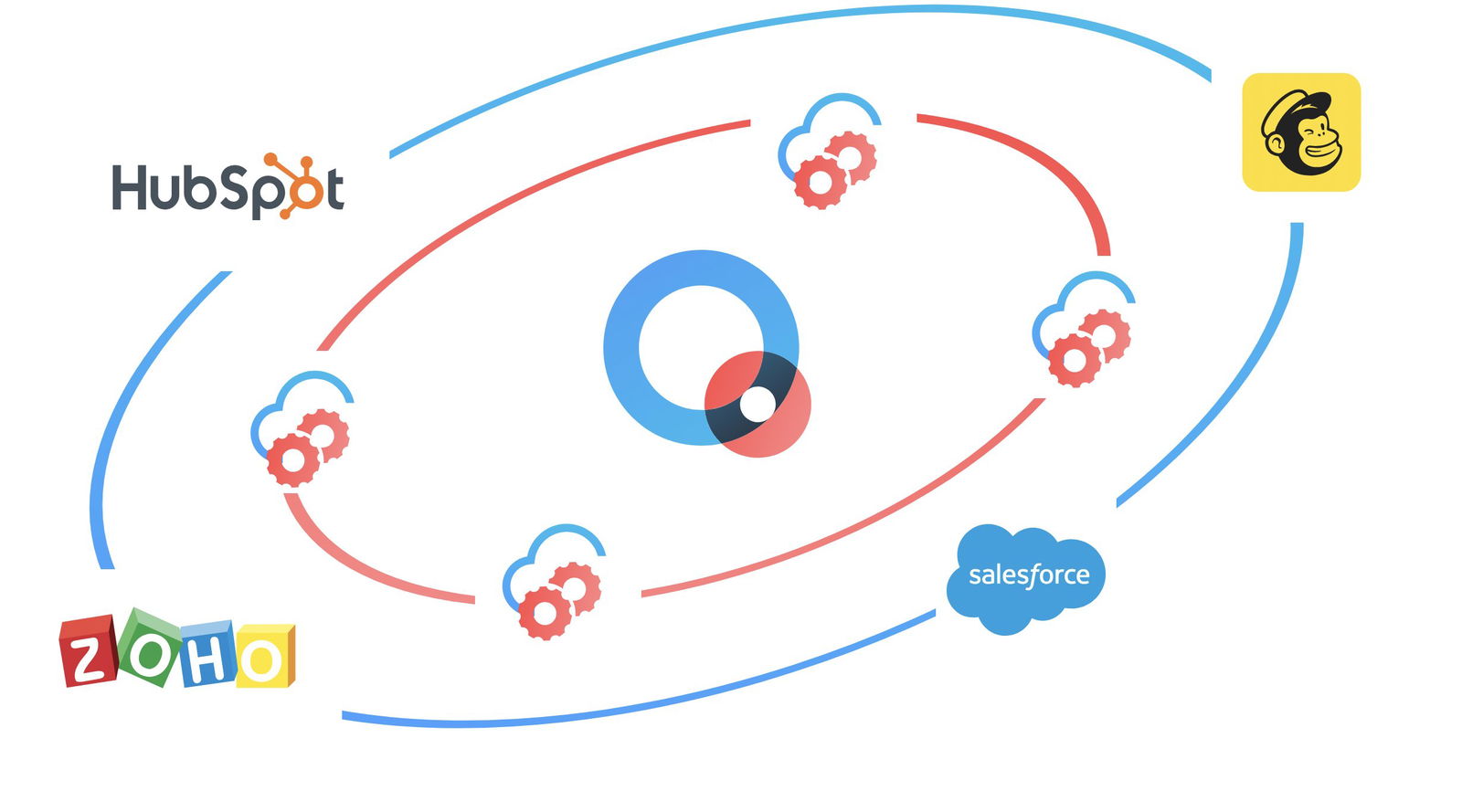
Another option is to connect to your CRM system. With our integrations, you can export leads directly to Hubspot, Salesforce, Zoho, and many more.
How do I enable two-way contact sharing for my Business Card?
1. Log into your account
Please log into your account on our QR Platform.
Login
2. Create your Business Card
Once in your account, go to the sidebar landing page menu and create a new business card.
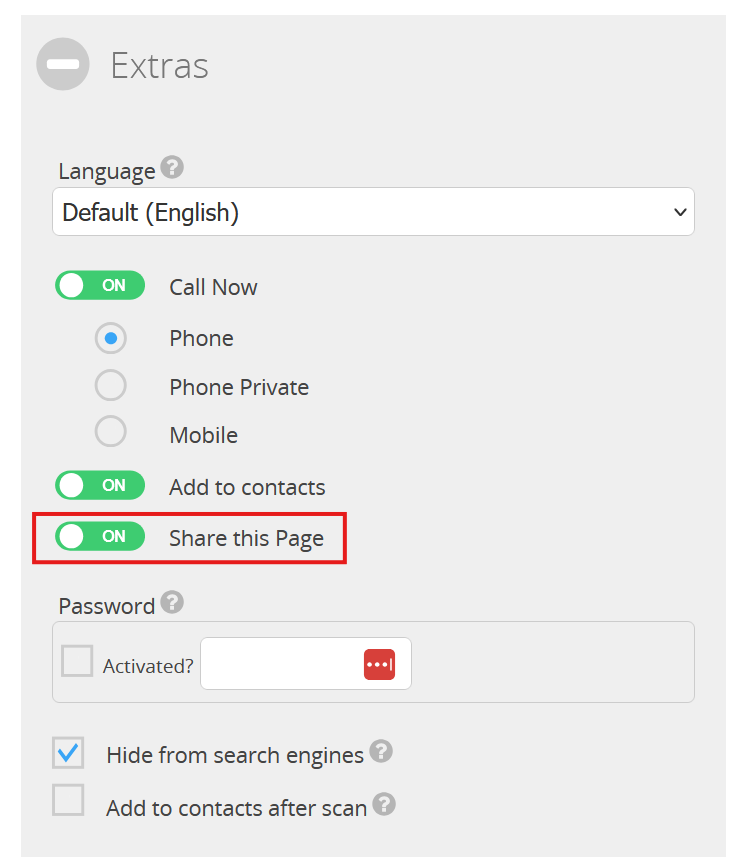
3. Activate the 'Share this Page' Button
How are the contacts exchanged?
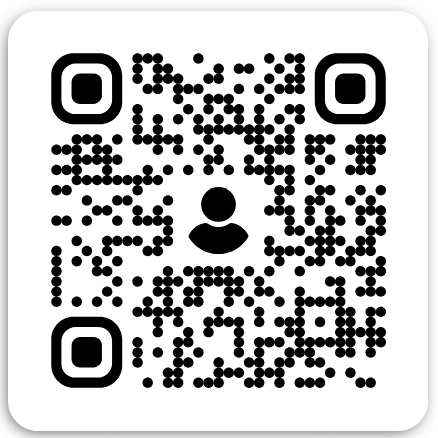
1. Your prospect scans your QR Code with his device
After scanning your QR Code, the prospect gets forwarded to your Digital Business Card Landing Page.
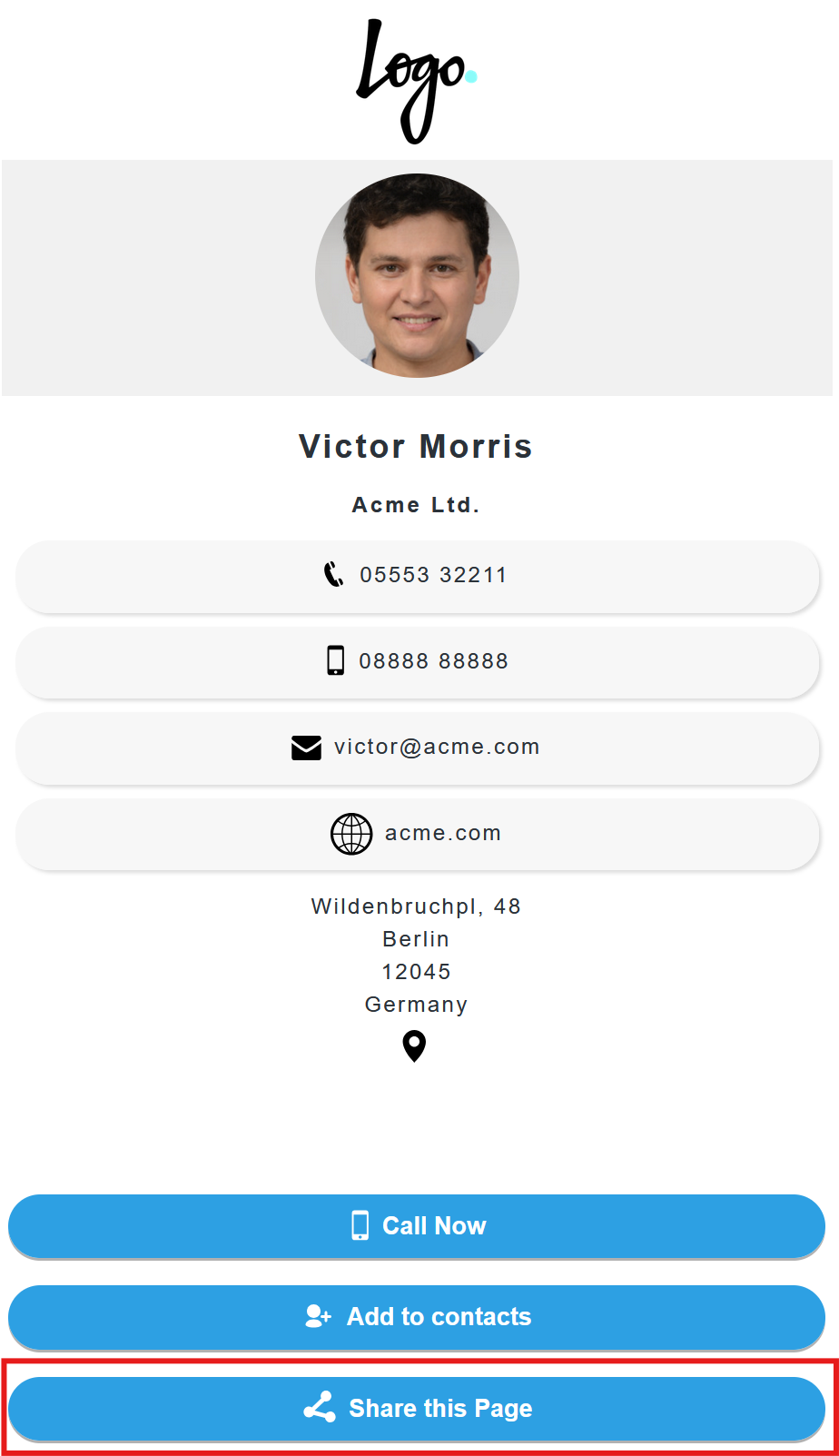
2. Your prospect clicks 'Share this page' on your Business Card
That is the button we added above - you will find it on the bottom of your Business Card:
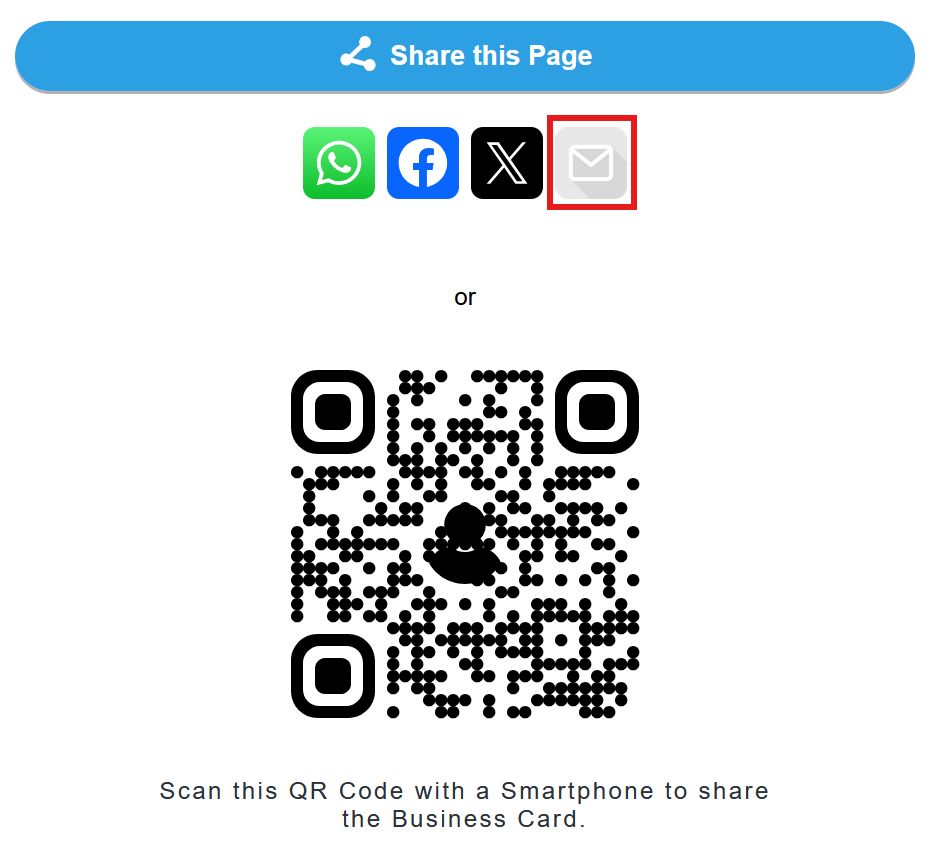
3. Your prospect clicks the 'E-mail' Button
A hidden compartment has now been revealed underneath the Share this page button. Next, hit the grey E-Mail icon:
Now, your prospect will be forwarded to your contact exchange Lead Form.
4. Your prospect enters his contact information
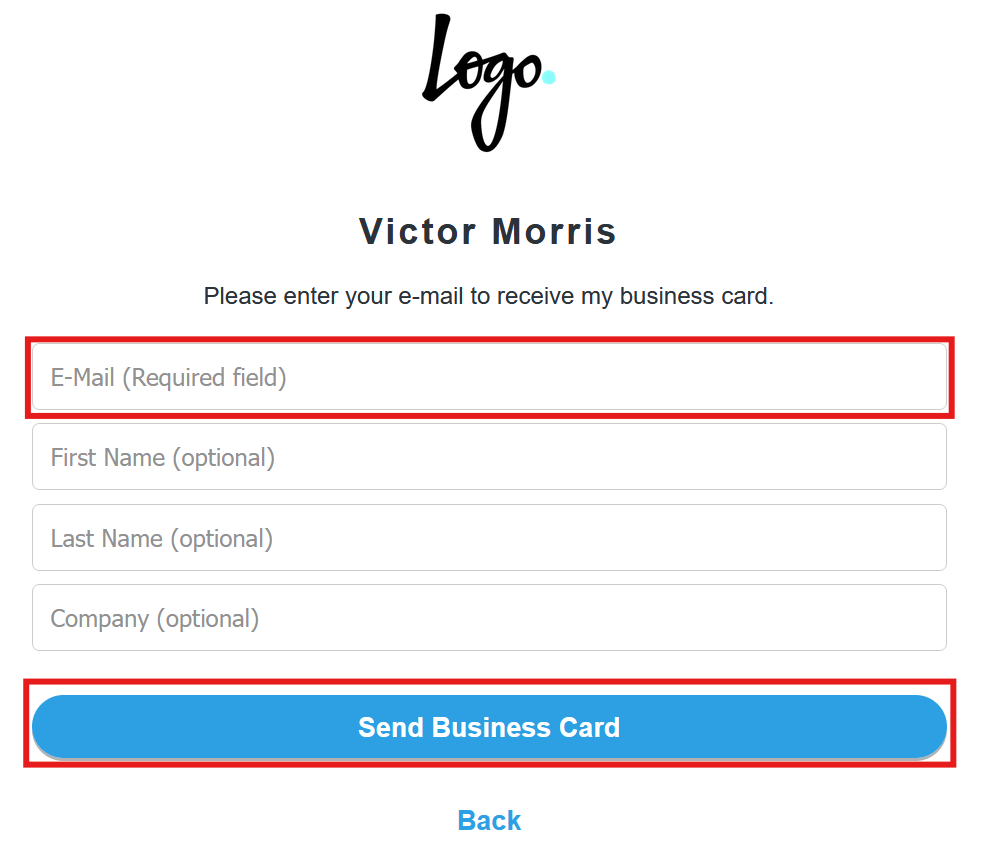
5. The contact information will be exchanged
After hitting Send Business Card, the prospect's info will be saved as a Lead into your account, while your contact information will be sent to the prospect's provided E-Mail address.
6. Download your new leads
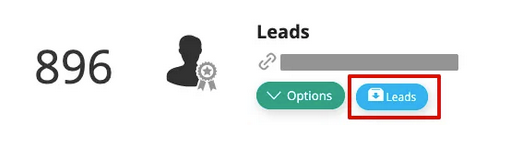
Now, click on the Leads Button in the landing page's option context menu or use the API to download a CSV with all your new leads. Then, you can use the CSV to import your new contacts into Outlook, utilize it for mass mailings or filter it for single contact entries.