How to create batch QR Codes using a CSV file in my account?
Introduction
Want to generate and upload a large number of QR Codes in one go? Whether you need to create dynamic QR Codes for marketing campaigns, bulk-generate codes for product packaging, or import a batch of contact details into your account: bulk uploading can save both time and effort. In this article, we’ll explore how bulk QR Code generation works and how to do it in your account.
What is a bulk upload?
Bulk-uploading refers to the process of uploading multiple files or data records at once, instead of doing it one by one. This is commonly used for tasks like adding many products or importing contacts by using a CSV-file containing the relevant information.
How to prepare your CSV-file for bulk-uploading QR Codes
1. Create a CSV-file with any appropriate program
Create a CSV-file (with MS Excel, Notepad, TextEdit, ...) to bulk-upload your QR Codes. The following example shows you how the data must be organised. Download the CSV-file and upload it into your account to see how it works.

Please remember not to use any headers in your CSV-file.
2. Fill your CSV-file with the available information
After you created your CSV, it is time to fill it with the desired parameters for your bulk QR Code upload.
Necessary Information
Column A: URL
In the CSV-file, Column A is the Target-URL your QR Code should forward to. If you create static QR Codes, the text in this field will be displayed when scanned.
Column B: Name
You can name your QR Codes in an identifiable way, for example consecutively (0001, 0002, ...).
Optional information in the row creating a QR Code
The following columns (C, D, E, F and J) are basic pieces of information that go into the same row that first creates a QR Code. After the QR Code has been created with the first row, the other parameters (Redirection Date, Multi-Country and Multi-Language) must follow in dedicated rows below.

Column C: Vanity URL
Column D: Description
Include a description for your internal convenience. This has no bearing on the QR Code or its functionality.
Column E&F: Location
Enter Longitude (E) and Latitude (F) into your CSV if you know where you want to use your QR Code. This has no bearing on the QR Code or its functionality.
Column J: Tags
You can also assign tags to your QR Codes. These have no influence on the QR Code or its functionality.
Optional information demanding dedicated rows
These parameters can only be added after the QR Code has already been created by a row above within the same CSV. Use column C (Vanity URL) to determine to which QR Code a row's information should be added.
Column G: Redirection date
To add a redirection date (from when on the QR Code should point to the Target URL in column A), add it to column G and enter the Vanity URL in column C to determine which QR Code it will be added to. The required format is YYYY-MM-DD hh:mm. Use a dedicated row that comes after the one creating the QR Code.

Column H: Country

Column I: Language

3. Save your CSV-file
Before uploading your file, you need to save it.
Please remember to save your table in the correct format (.csv)!
How to bulk-create QR Codes using a CSV-file
1. Log into your account
Please log into your account on our QR Platform.
Login
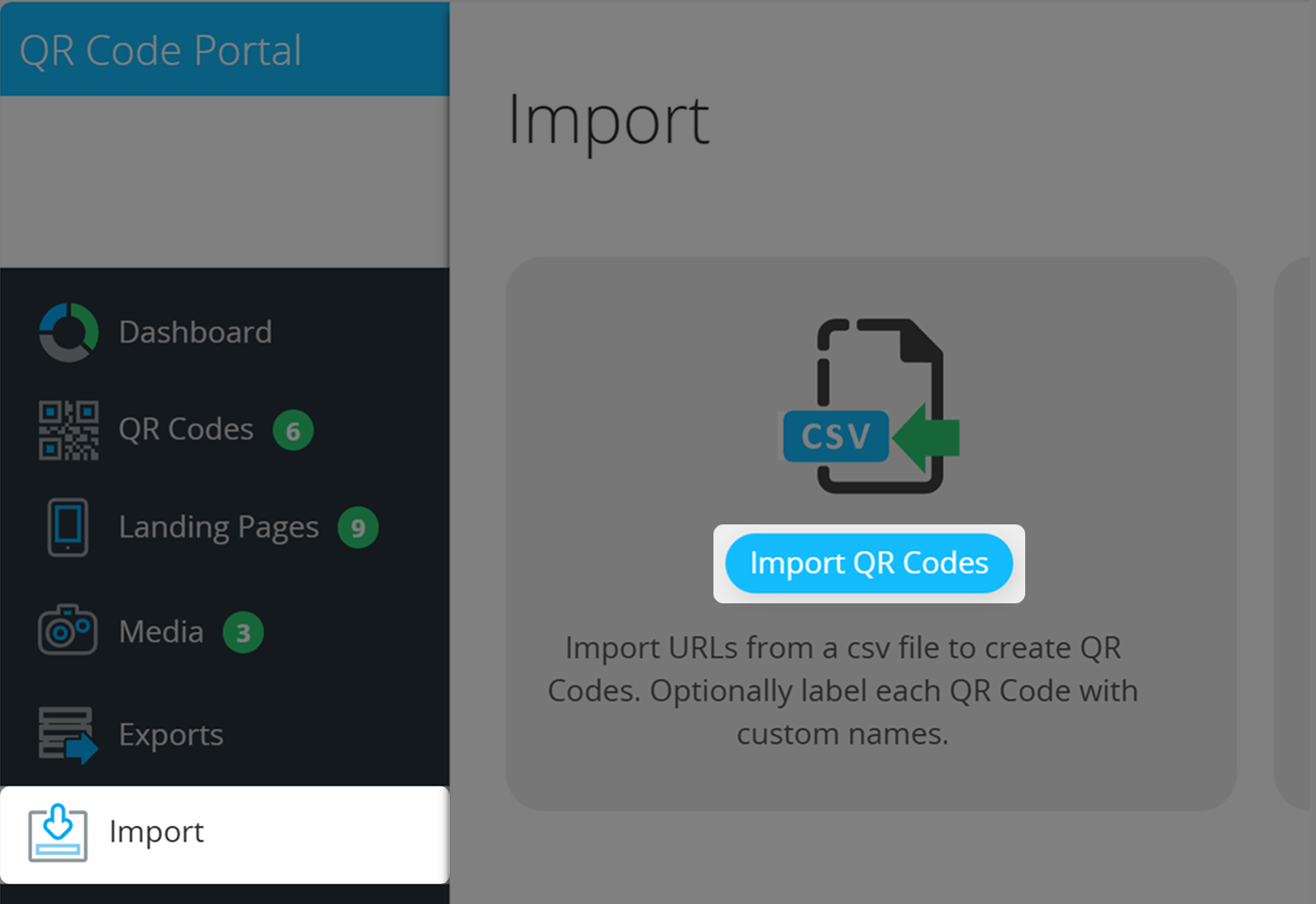
2. Go to the Import Page and click "Import QR Codes"
To get to your Import Page, please click Import in the left hand menu. Then, choose Import QR Codes.
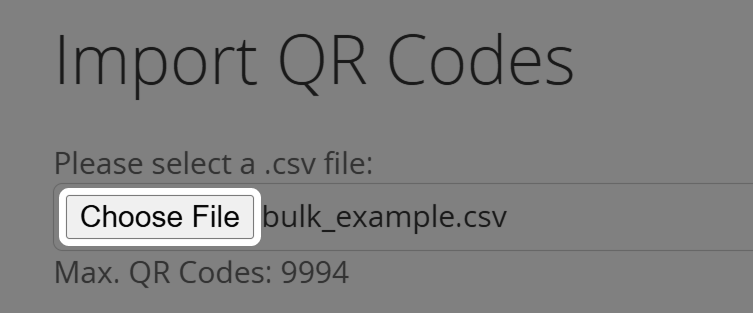
3. Choose your CSV-file
Next, hit Choose File and select the CSV on your device.
4. Set optional parameters for your QR Codes
You can set additional options for your bulk-created QR Codes.
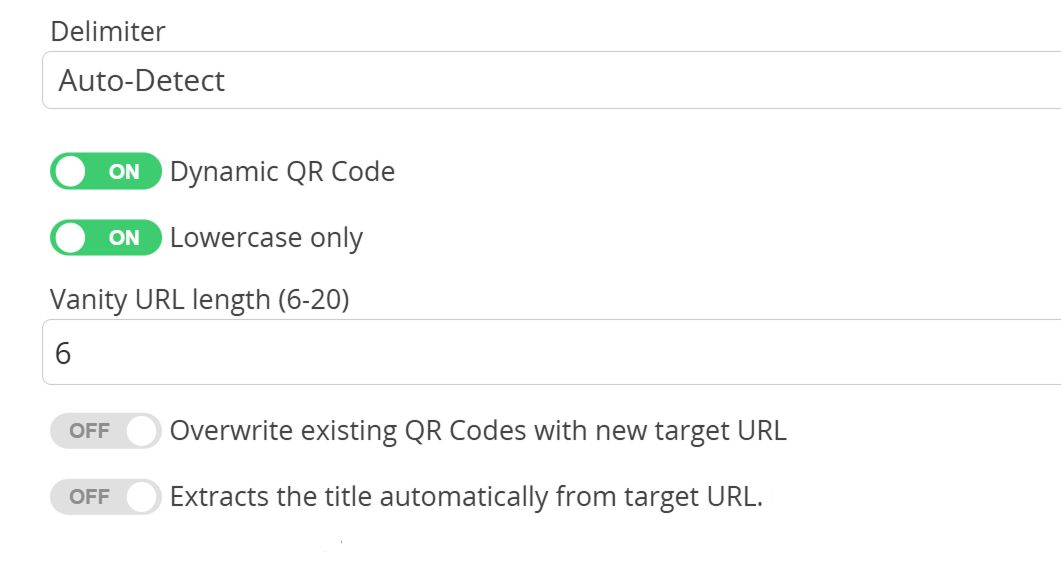
Delimiter
Set which delimiter your uploaded CSV file uses: Semicolon or Comma (or let the platform detect it).
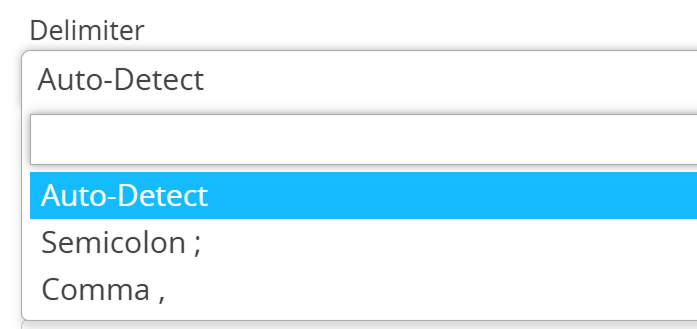
It is best to decide for one delimiter - do not mix them in your CSV.
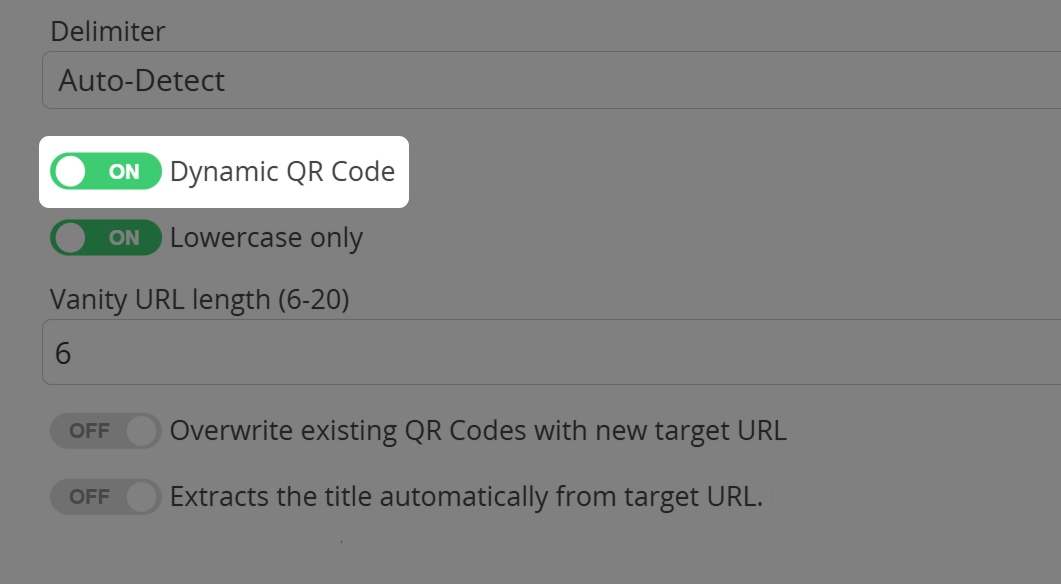
Dynamic QR Code
Determine whether you want your QR Codes bulk-generated as dynamic or static QR Codes.
Screenshot of option "Dynamic QR Code" when importing QR Codes | Choose between dynamic or static QR Codes
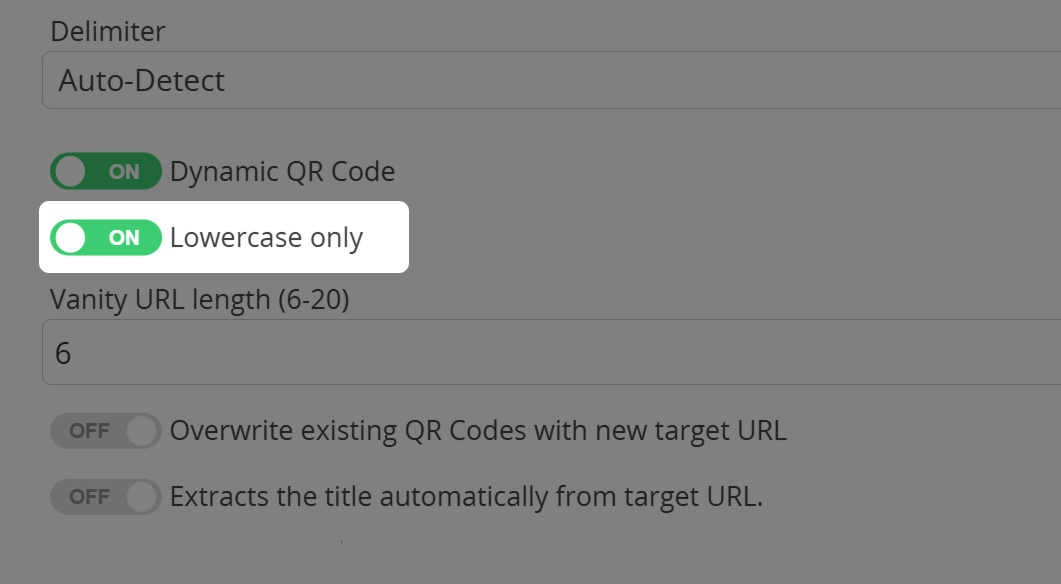
Lowercase only
You can activate Lowercase only if you don't want any uppercase letters in your Short URL.
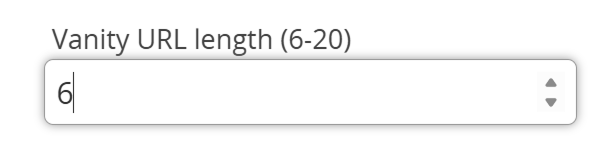
Vanity URL length
Determine how long your Vanity URLs should be by entering a number (6-20) or by using the right-hand arrows. This only takes effect if your Short URLs are randomly generated (and have not been entered into the CSV).
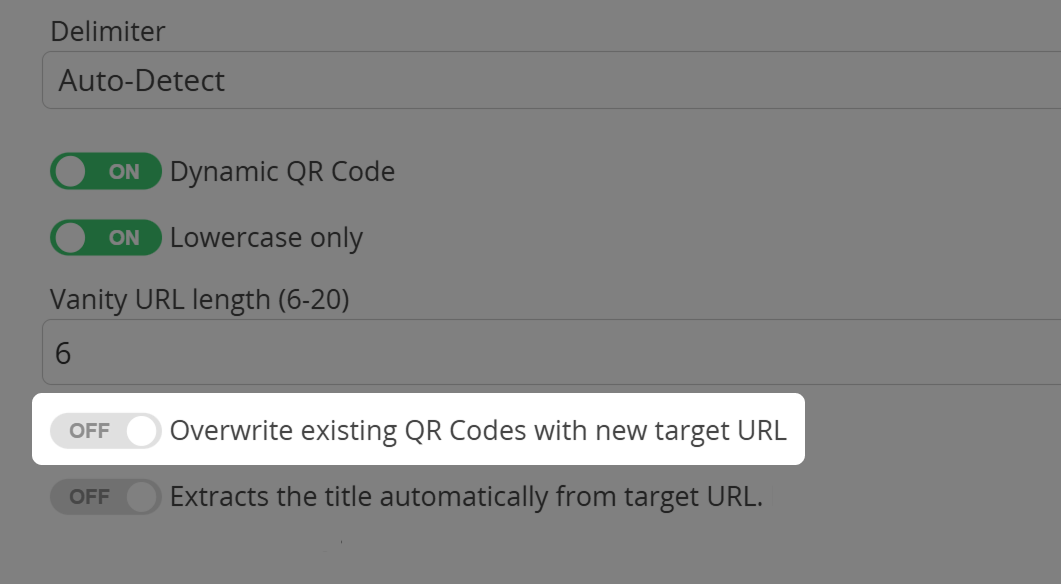
Overwrite existing QR Codes with new target URL
Activate this option to bulk-change target URLs of already existing QR Codes in your account.
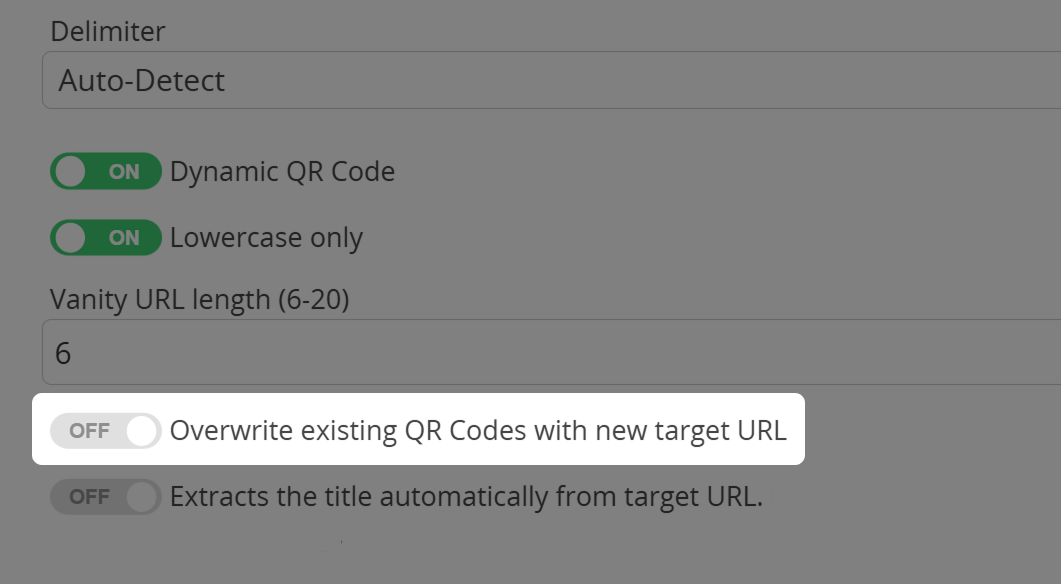
Remember to use the same Short URLs in your CSV as the already existing QR Codes you want to change, so the platform knows which QR Codes to update.
Extract the title automatically from target URL
You may use the target websites' titles as the names for your QR Codes. Importing will take longer with this option enabled, as each URL must be crawled individually.
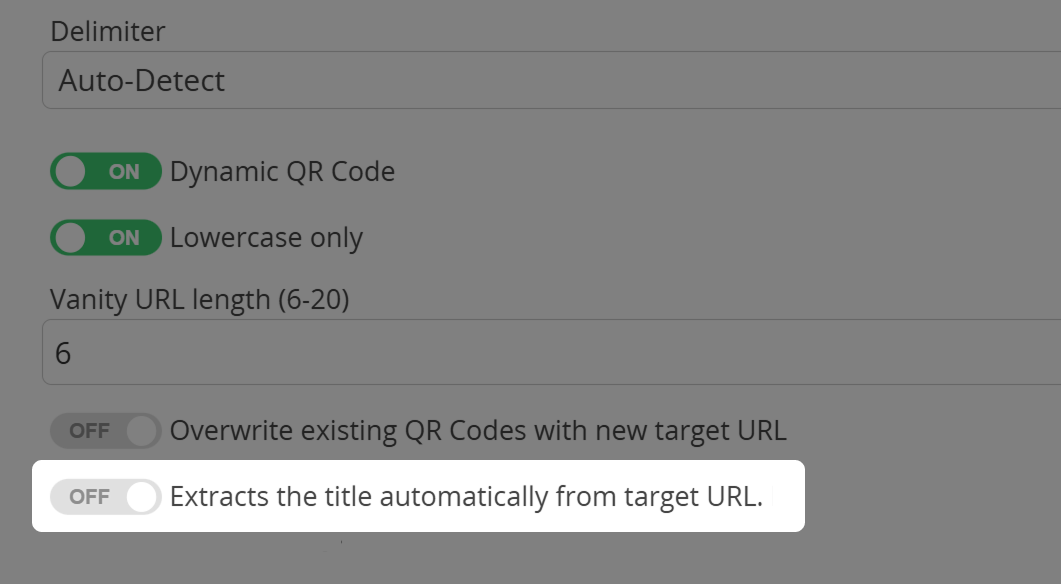
Even when extracting the names from the titles, your CSV needs to include names in column B, else your QR Codes will be generated incorrectly.
5. Click "Import QR Codes"
After everything has been set up, please click Import QR Codes to begin the importing process.
6. After importing your QR Codes

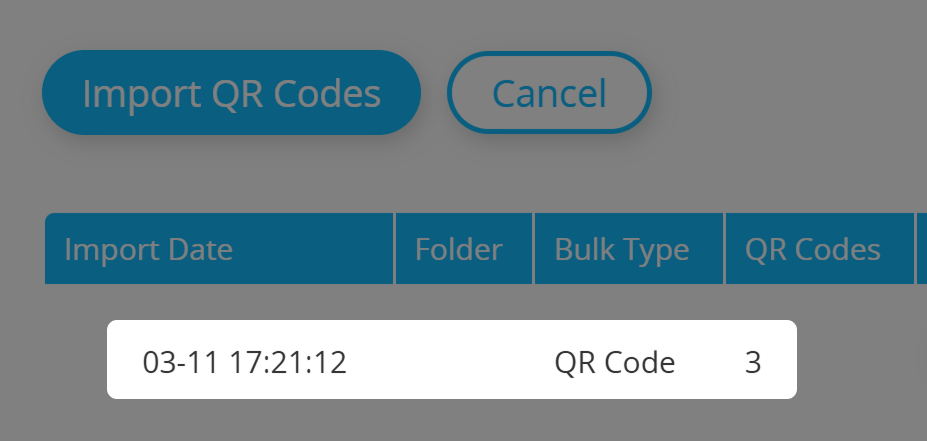
Now that your QR Codes have been generated, you can find the whole bulk below the Import button.
Bulk actions
Next to your bulks you will find a number of buttons targeted at the respective bulk.

Get a notification E-Mail for each scan
Activate this option to get notification E-Mails for each scan of any QR Code within the bulk.
Get the GPS location of your scans
Use this option to get the GPS position of your scans for this bulk.
Reset the QR Code bulk's statistics
Click Reset to set back all statistics to zero for the QR Codes within this bulk.
Delete the bulk of QR Codes
To delete the whole bulk of QR Codes, click Delete and confirm.
View the QR Code bulk's statistics
View the summarized statistics of the whole bulk of QR Codes by hitting Statistics.
Download a single QR Code from your bulk
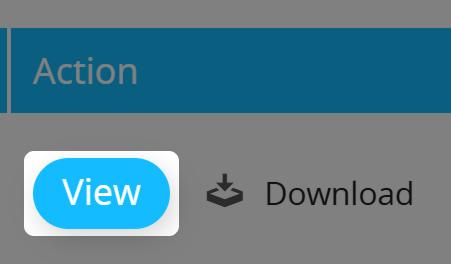
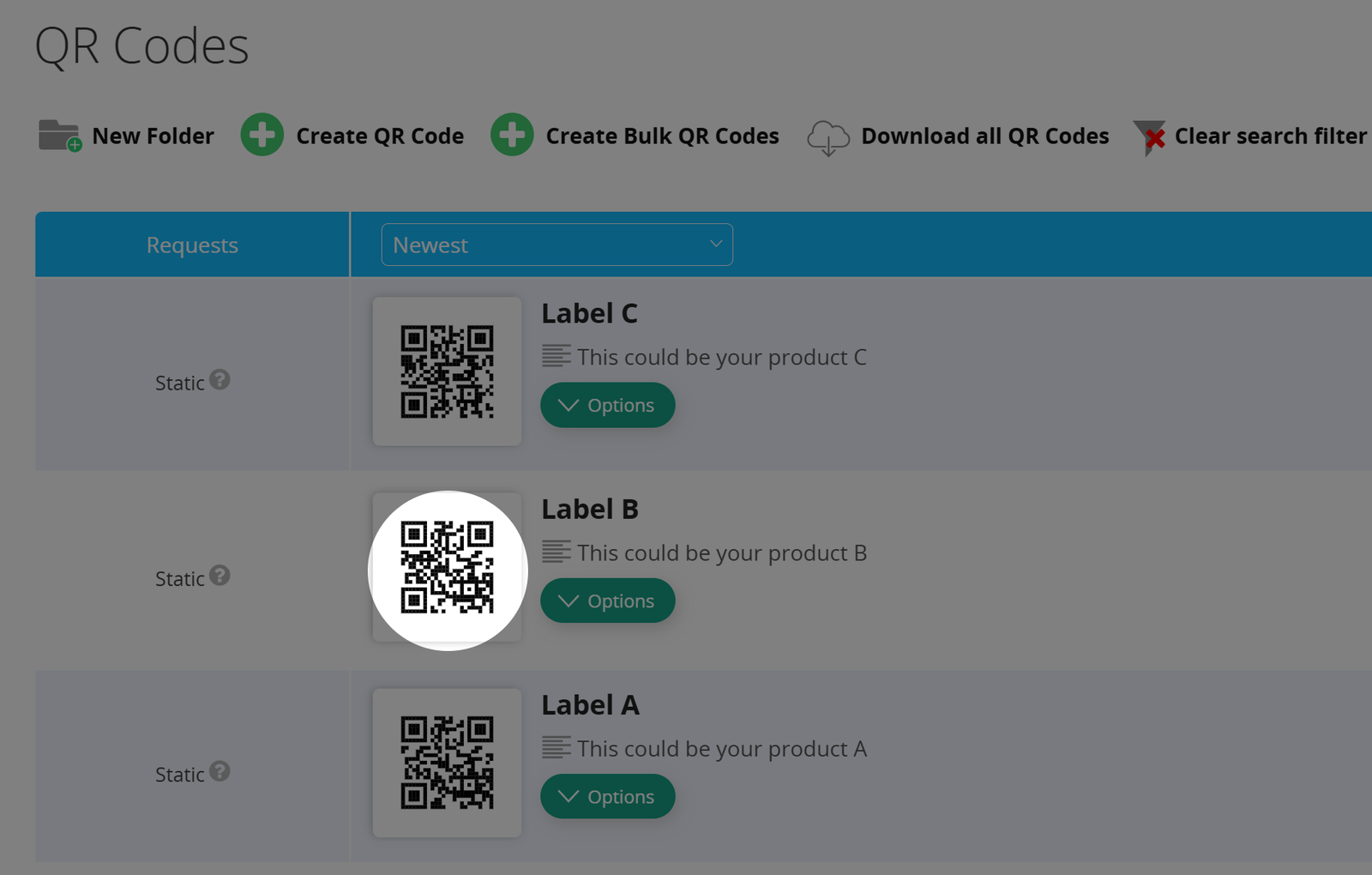
Now that your QR Codes are all set up and have been created, you can access them listed in your QR Code overview by clicking View.
Once there, you can click on a QR Code to apply a design to and/or download this single QR Code.
Download the whole bulk of QR Codes
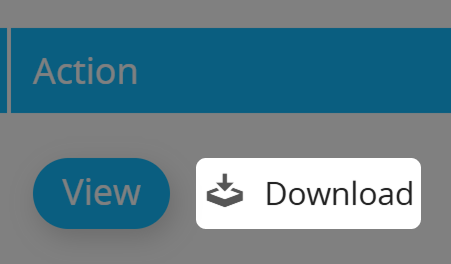
You can directly download the whole bulk of imported QR Codes by clicking the Download button. You will then be able to apply a design to all QR Codes and/or download them. This will start the job to create your QR Codes as desired.
How to bulk-update existing QR Codes using a CSV-file
You can set new target URLs for already existing QR Codes in your account by taking the following steps when bulk-uploading:
1. When creating your CSV-file
The process of updating your QR Codes is oriented at column C (Short URL). The Short URLs will remain the same, the target URLs (column A) will be updated.
Please remember to use the correct Short URLs in your CSV so the platform knows which QR Codes to update.
2. When uploading your CSV-file
Before hitting the Import button, activate the option Overwrite existing QR Codes with new target URL.
3. Enjoy your updated QR Codes!
After uploading your CSV-file, your existing QR Codes will have their new target URLs.