What options can I generally set for QR Codes in my account?
Introduction
Easily share content, track GPS locations of your scans, set up a password protection, directly download or delete a QR Code when it's no longer needed. In this article, we’ll give you a quick overview of the most useful and generally available features you’ll find when creating or managing your QR Codes — so you can get even more out of every scan.
Open a QR Code's Options Tab
Choose the QR Code you want to check and hit the Options button, located below the QR Code's Vanity URL. These options only apply to this single QR Code.
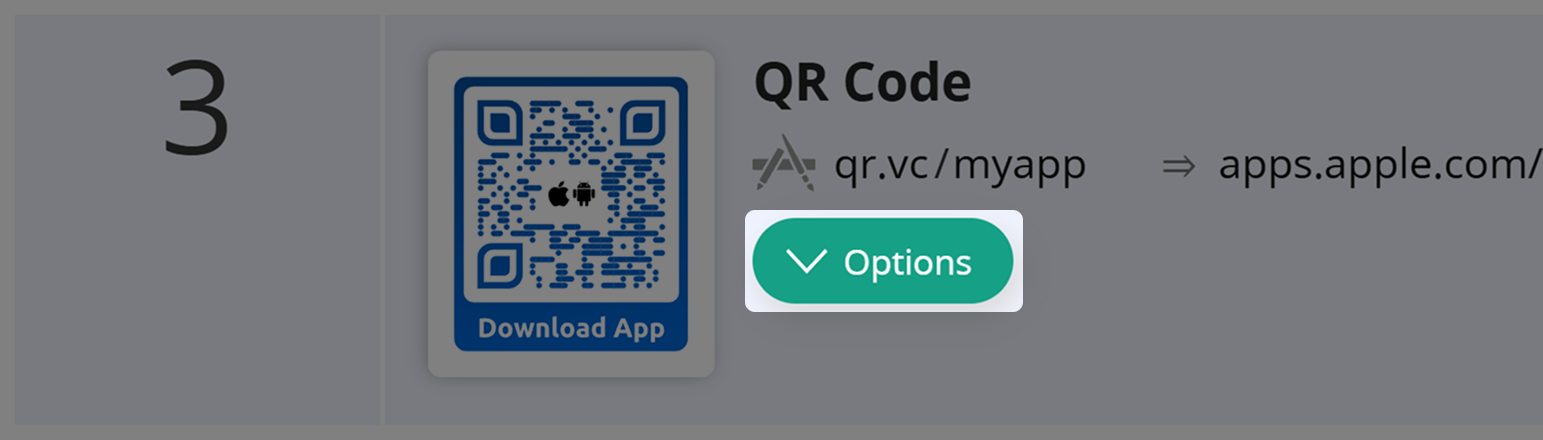
After opening a QR Code´s Options Tab, you may check and change all accessible QR Code settings.
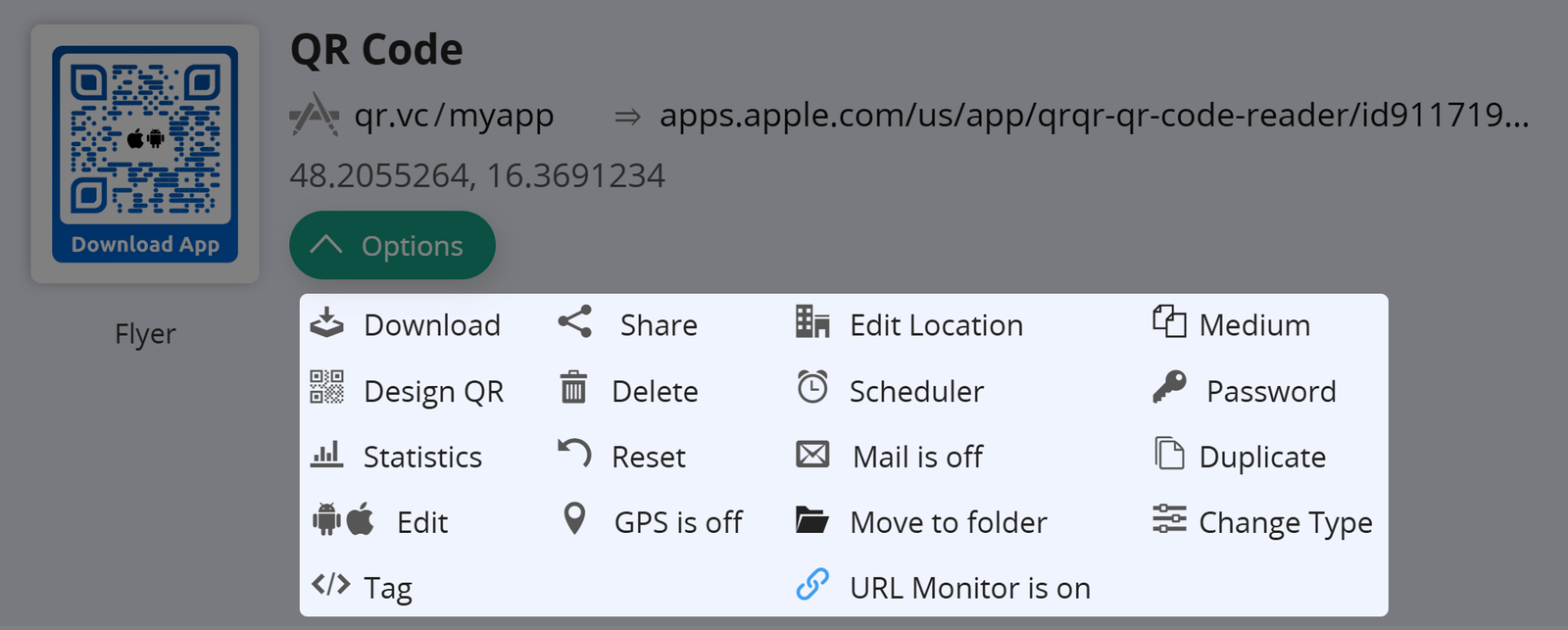
List of all QR Code options
Let's go through all QR Code options generally available to users.
Download
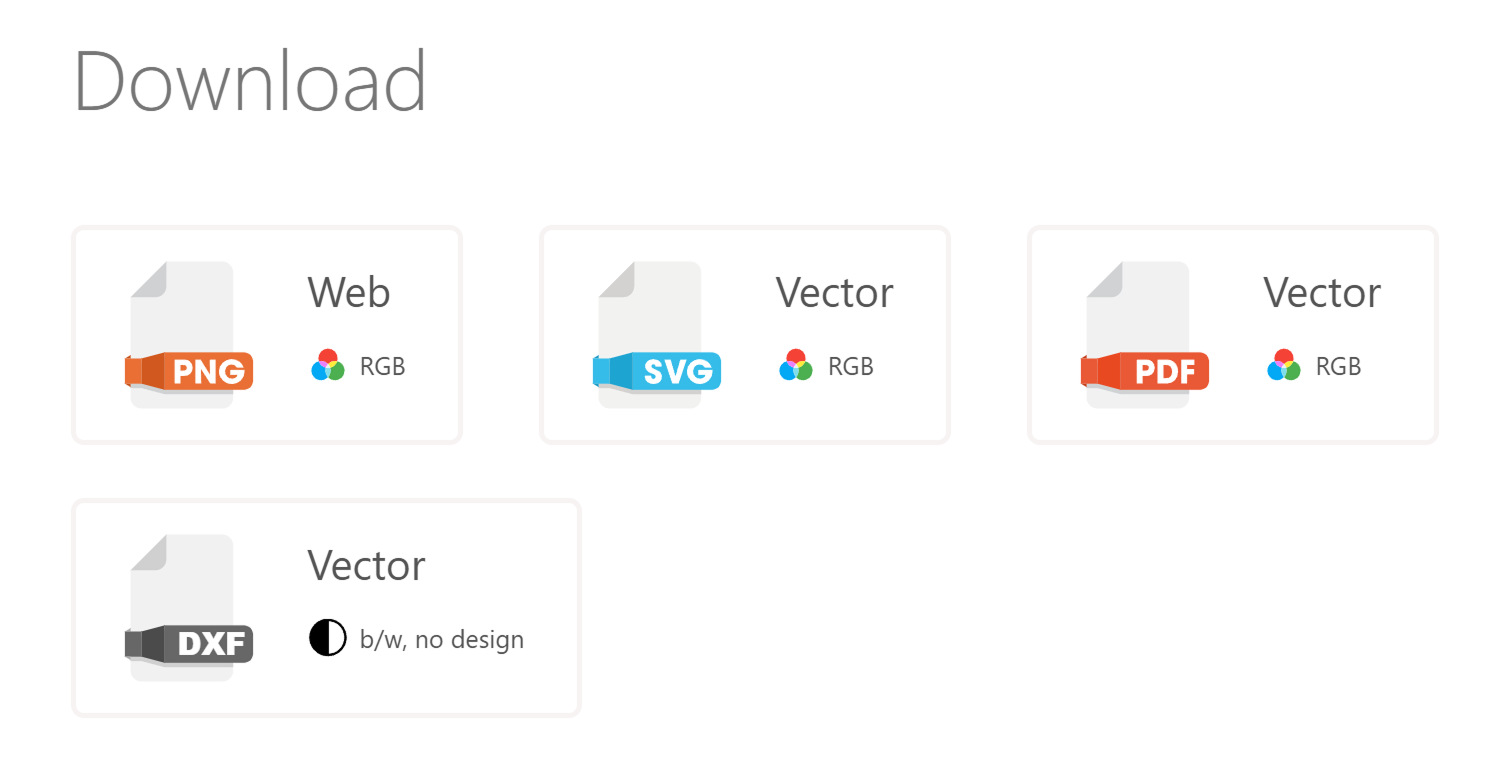
Hit Download to directly access the Download Tab for this QR Code, without going through the QR Design Tool.
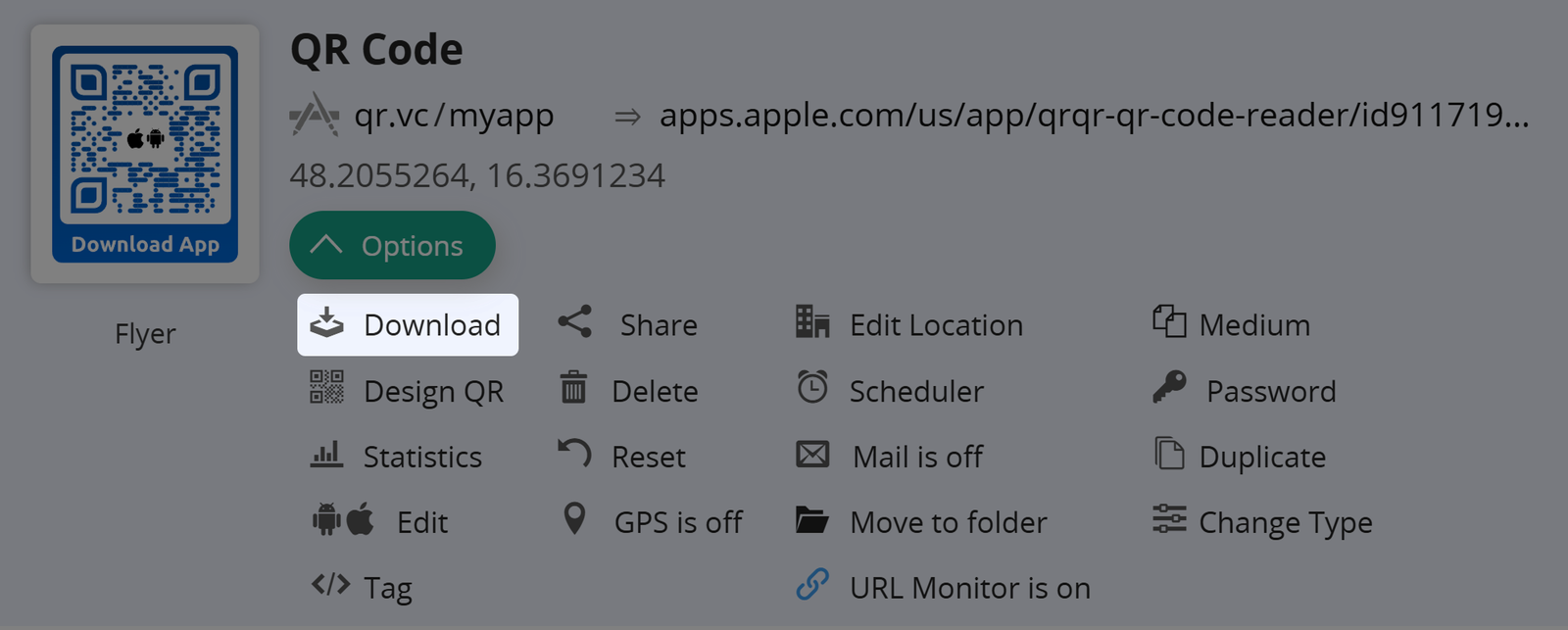
Choose a file format and download your QR Code as-is.
Design QR
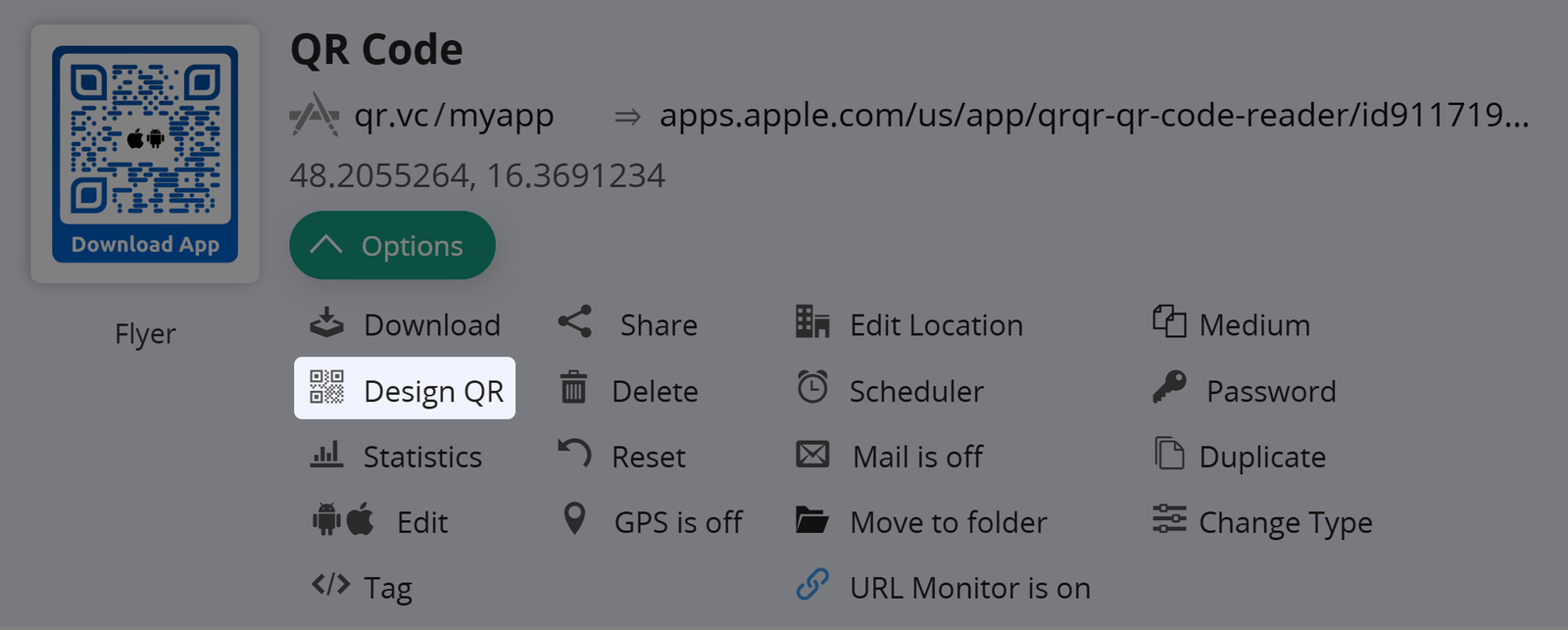
If you want to design your QR Code before downloading it, click Design QR. The QR Design Tool will open.
For Designer QR Codes, we generally suggest using Vector Formats with an SVG logo.
Statistics
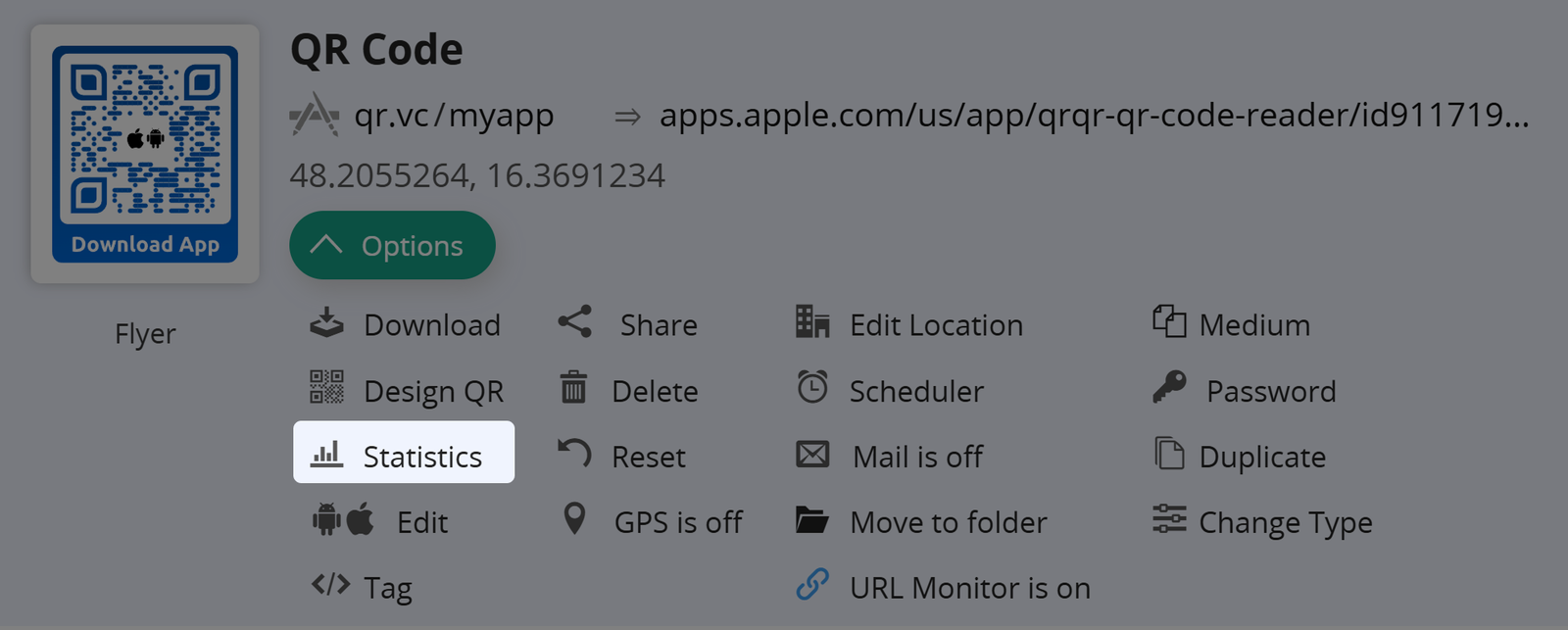
View the agglomerated data collected for your QR Codes by clicking the Statistics button in a QR Code's Option Tab.
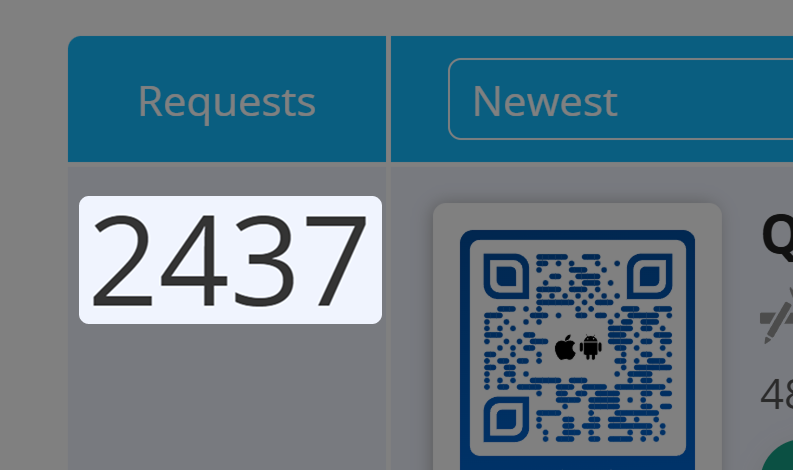
Alternatively, you can also click on the number of requests in the QR Code Overview to access the Statistics Page.
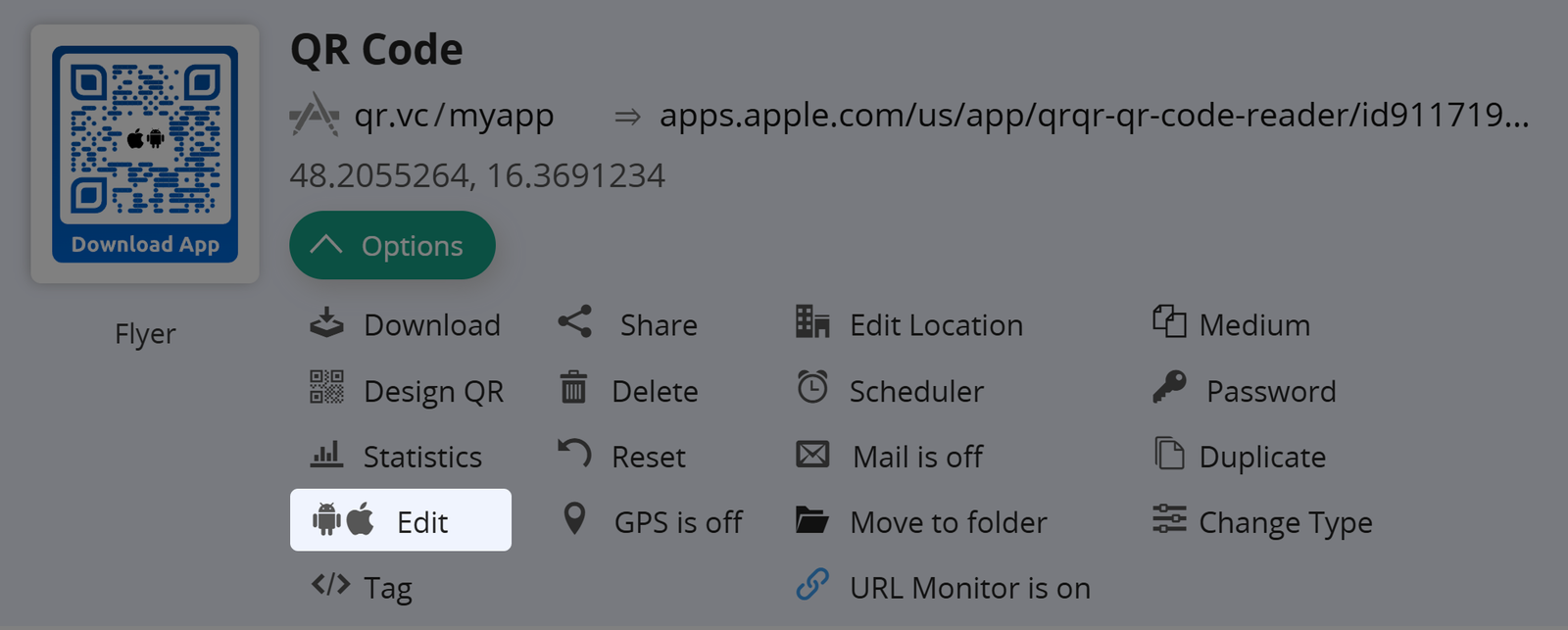
Edit
To edit a QR Code's target URL(s), files, or the Landing Page, click Edit in the Options Tab. .
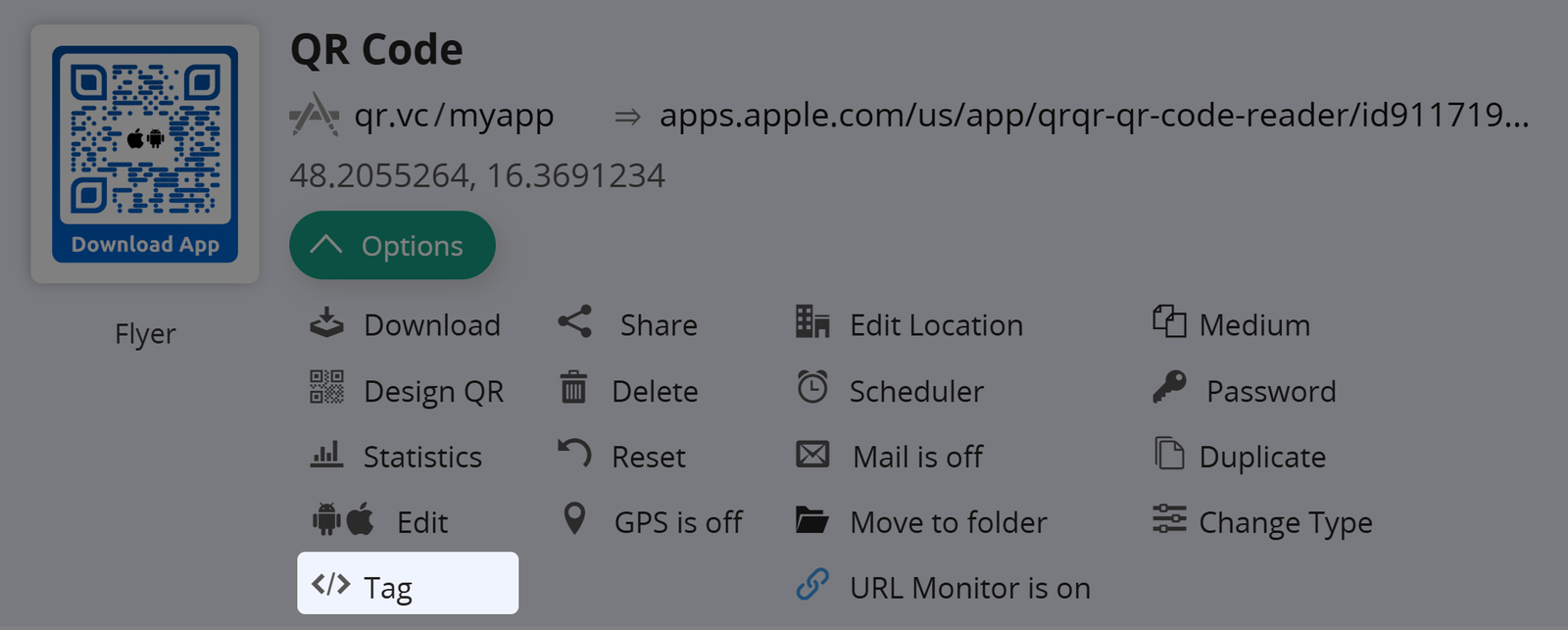
Tags
You can tag your QR Codes to better keep track of their use or the specific campaign they belong to by hitting Tag.
Find more information on tags.
Assigned tags have no bearing on the QR Code or its functionality.
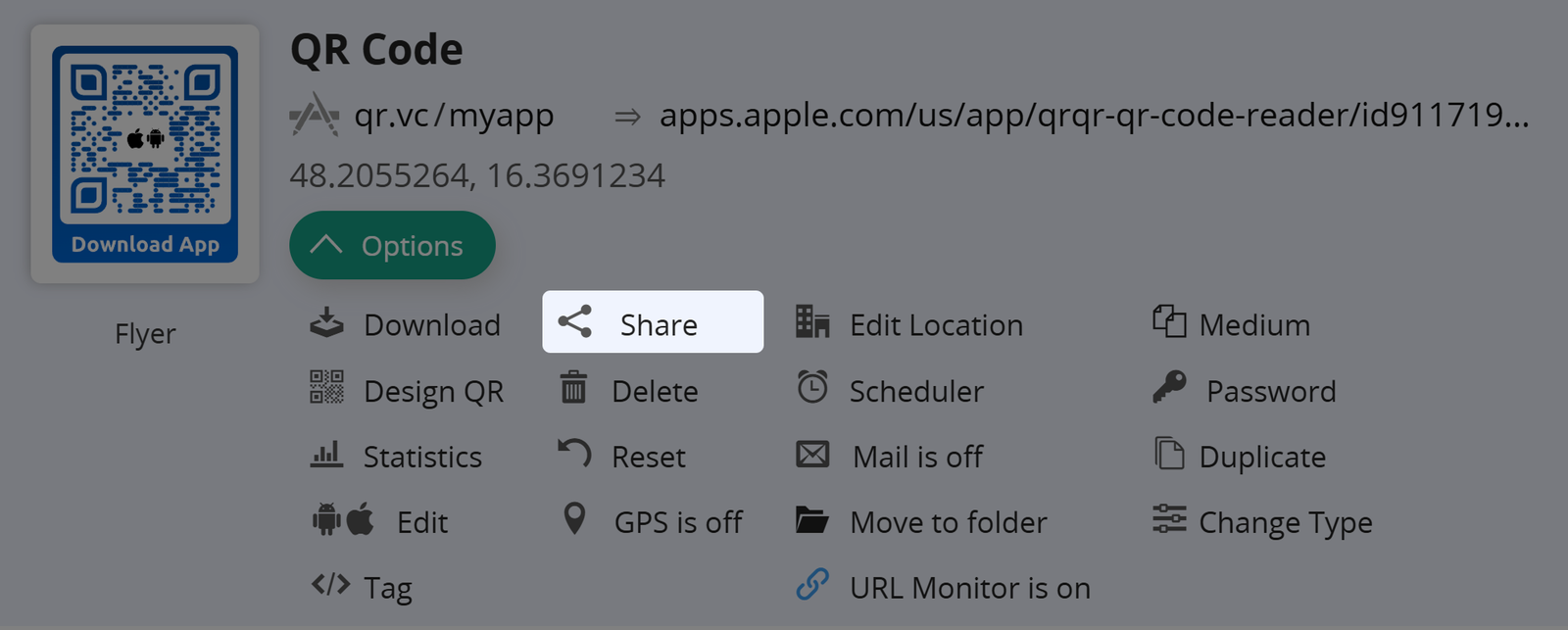
Share
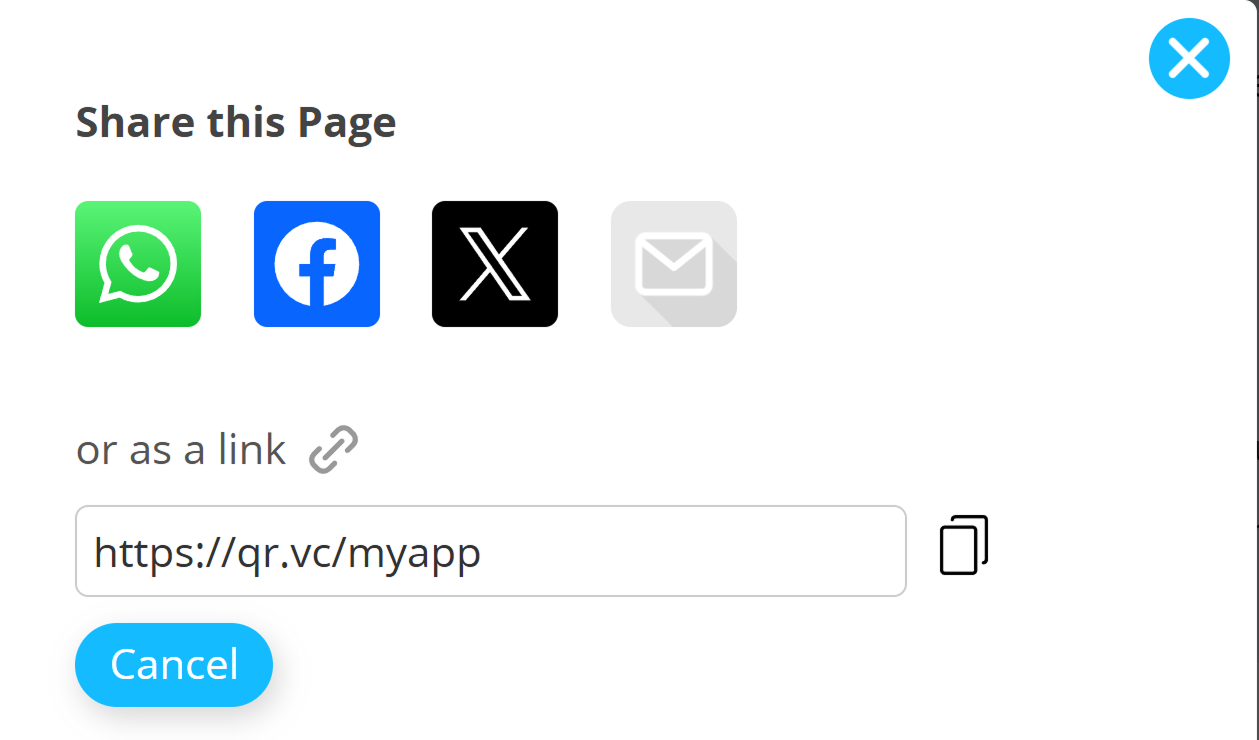
Share your Short URLs with your friends, followers or fans on Social Media or via other channels by clicking Share.
If applicable, a referrer will be added to the URL in order to track in
the statistics, via which specific shared link a user accessed it.
Delete
Delete unused QR Codes to free slots for new QR Codes in your account.
Remember: Deleting a QR Code also clears all collected tracking data. Save your statistics on your local device before deleting if you want to keep them.
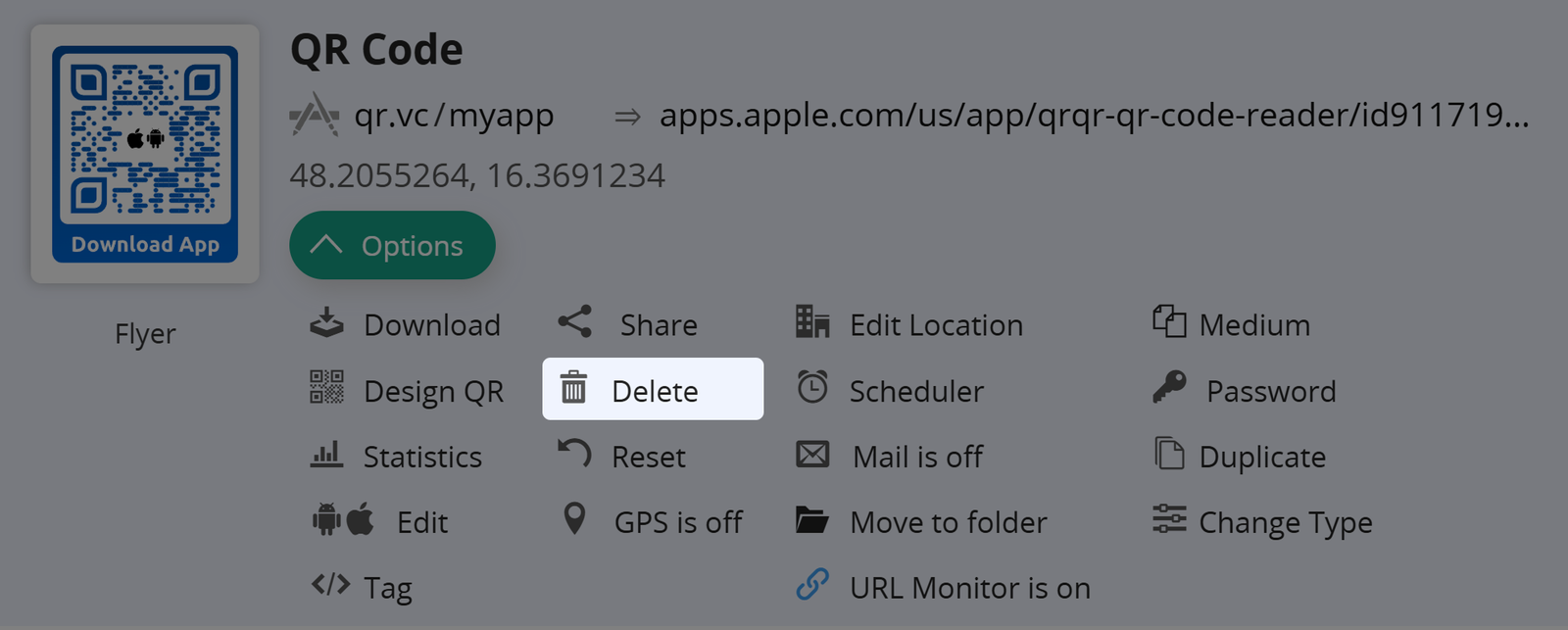
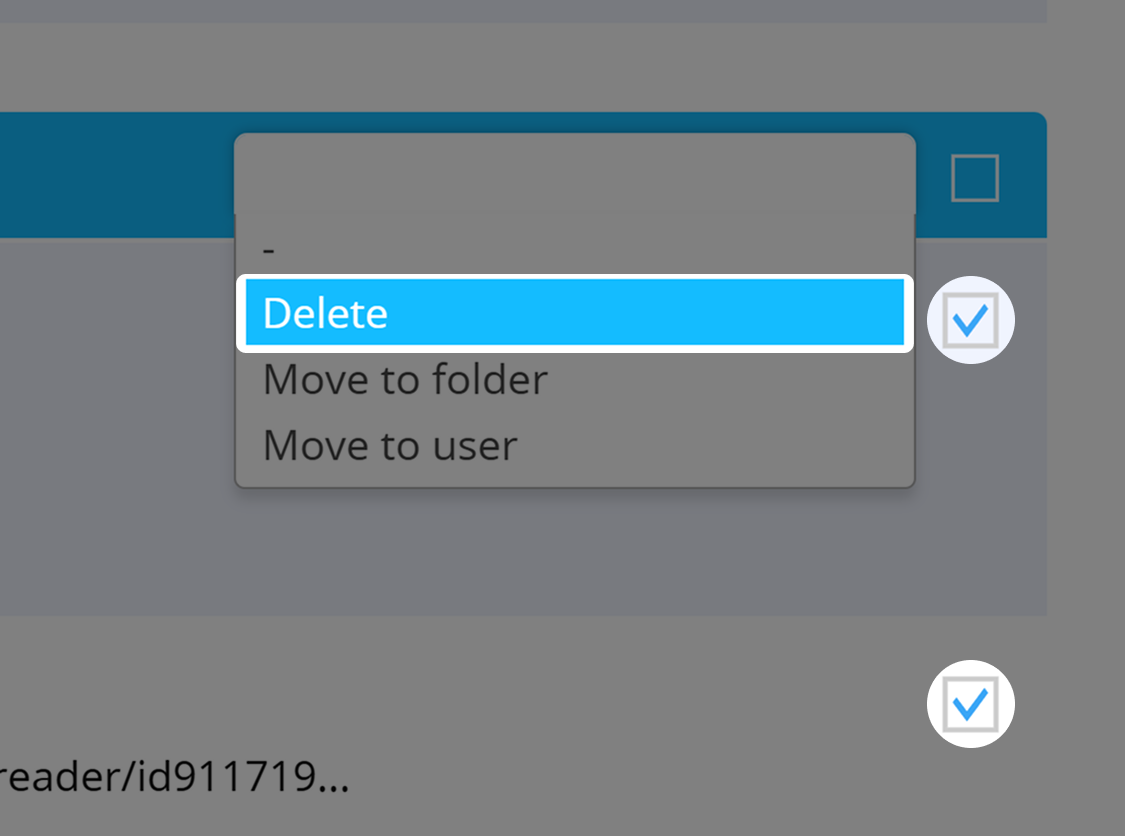
Alternatively, you can also mark QR Codes and choose "Delete" in the QR Code Action drop-down in the top-right corner of the QR Code overview.
Reset
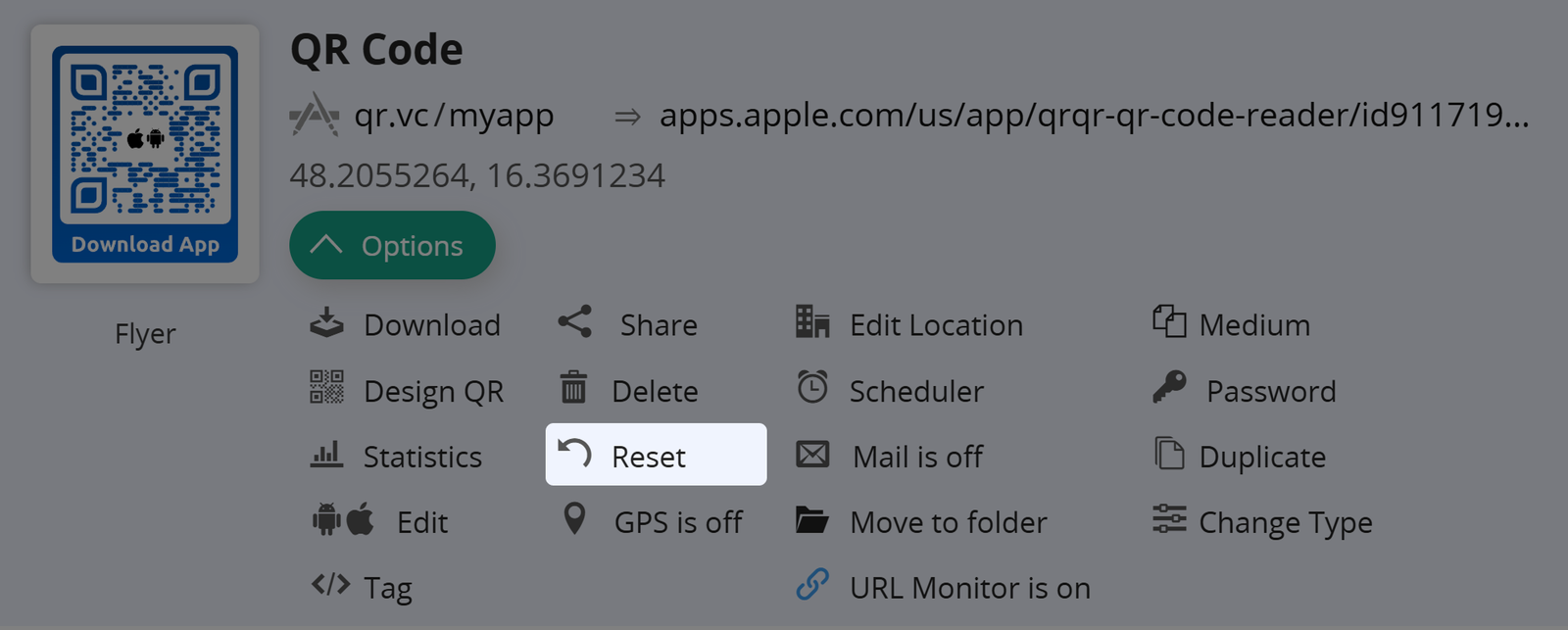
Click Reset to set all statistics and tracking data back to 0 for this QR Code.
GPS
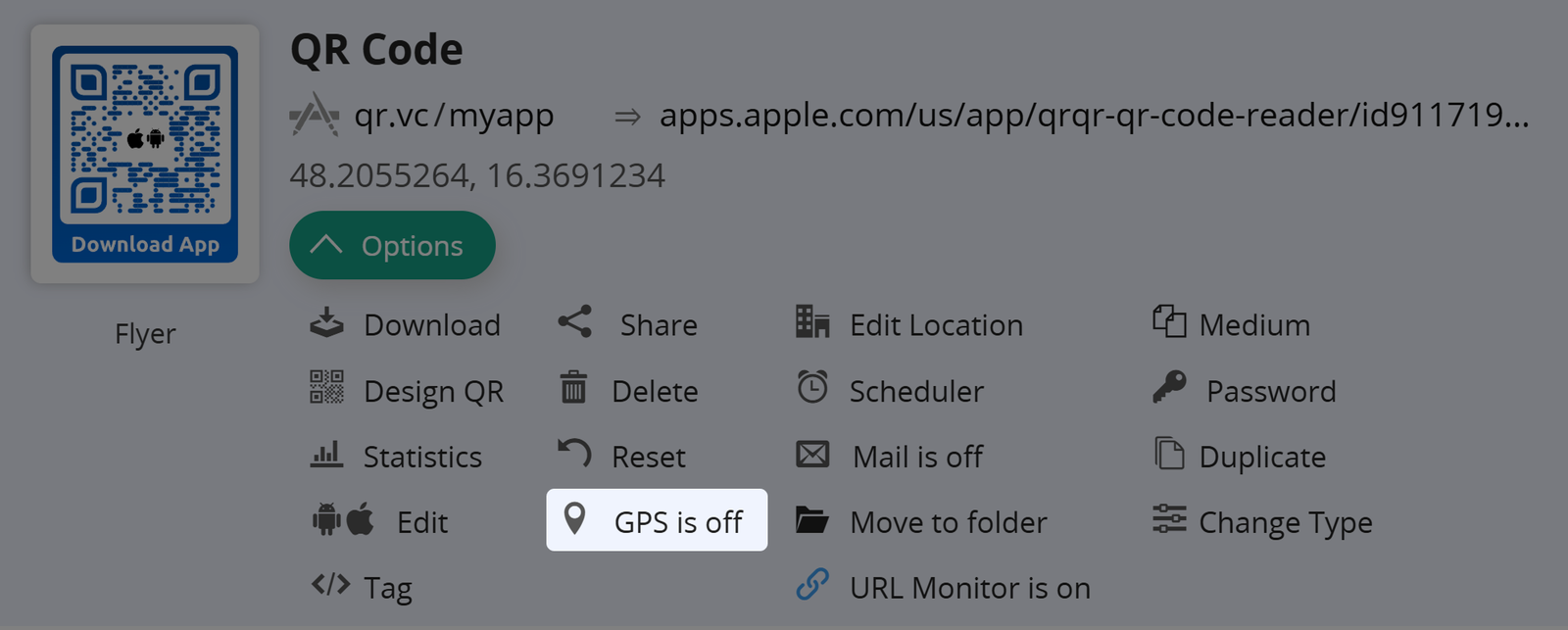
If you want to know where your QR Code has been scanned, you can activate GPS tracking. Get more information on GPS Tracking.
Location
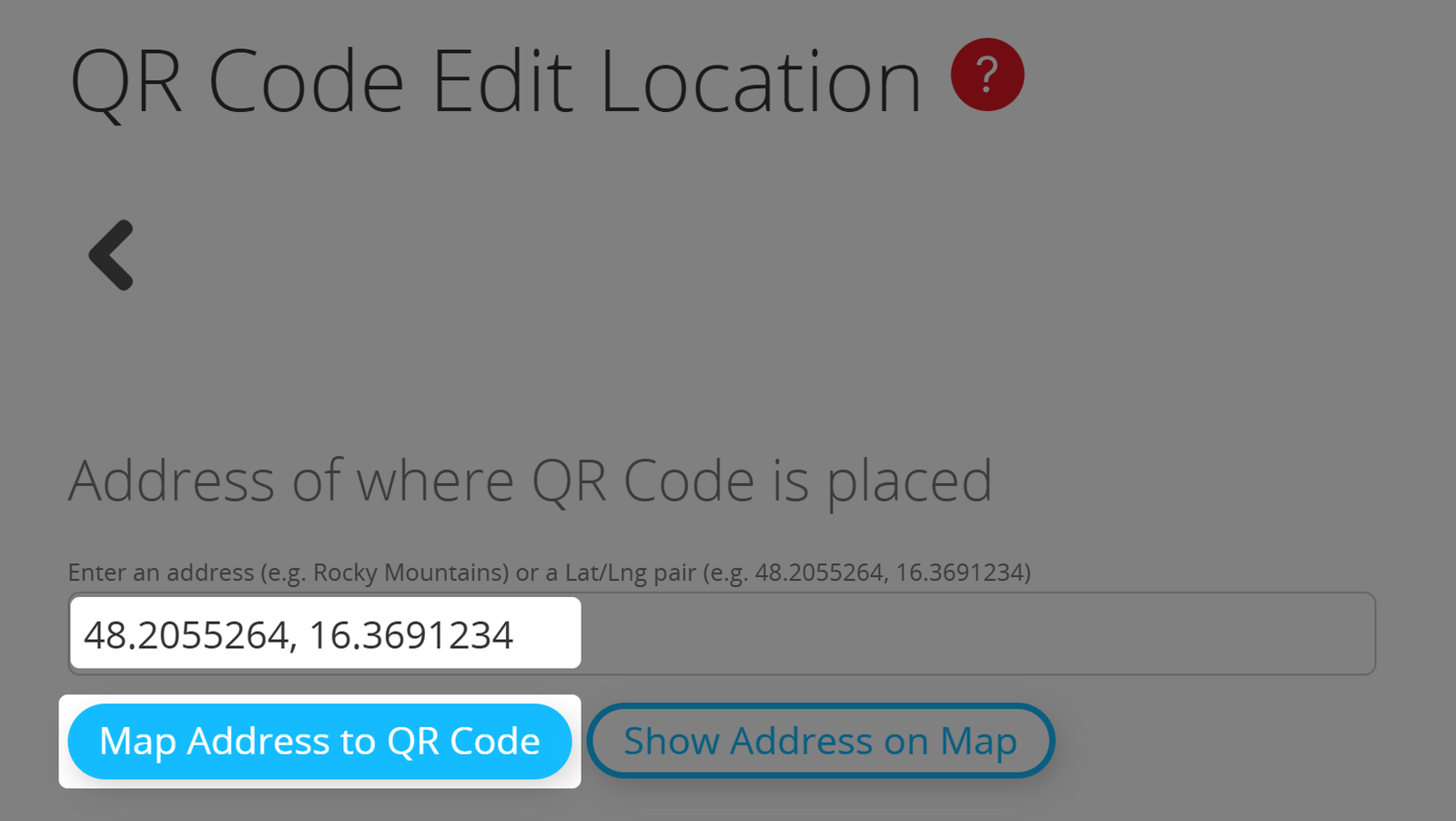
If your QR Code will be displayed at a fixed location, you can add the GPS data or address to your QR Code by using Edit Location. This has no bearing on the QR Code or its functionality.
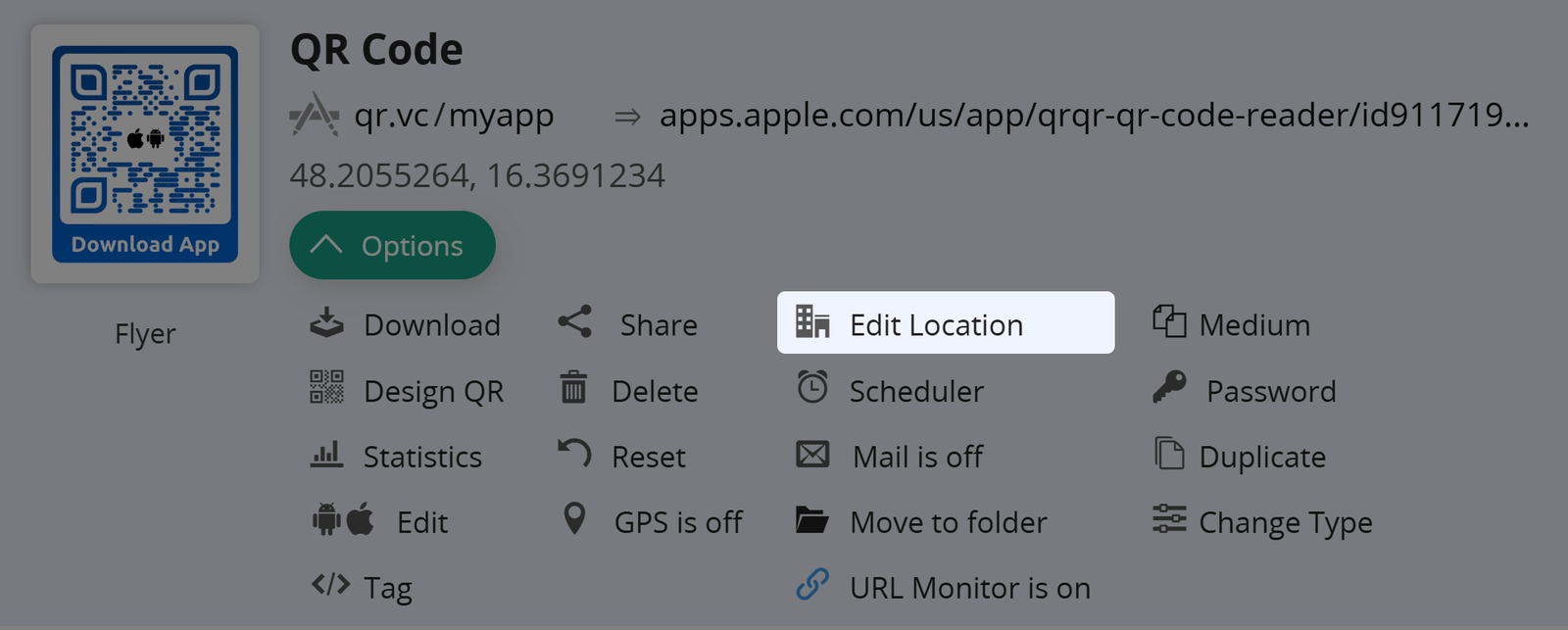
Enter the address or Lat/Lng and map the location to a QR Code.
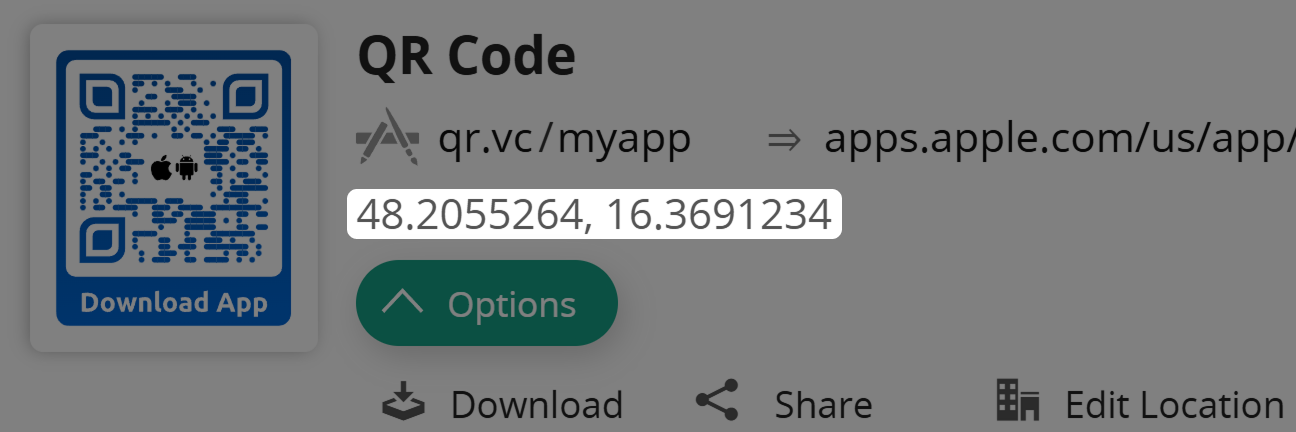
Afterwards, the location is displayed above the QR Code's options.
Scheduler
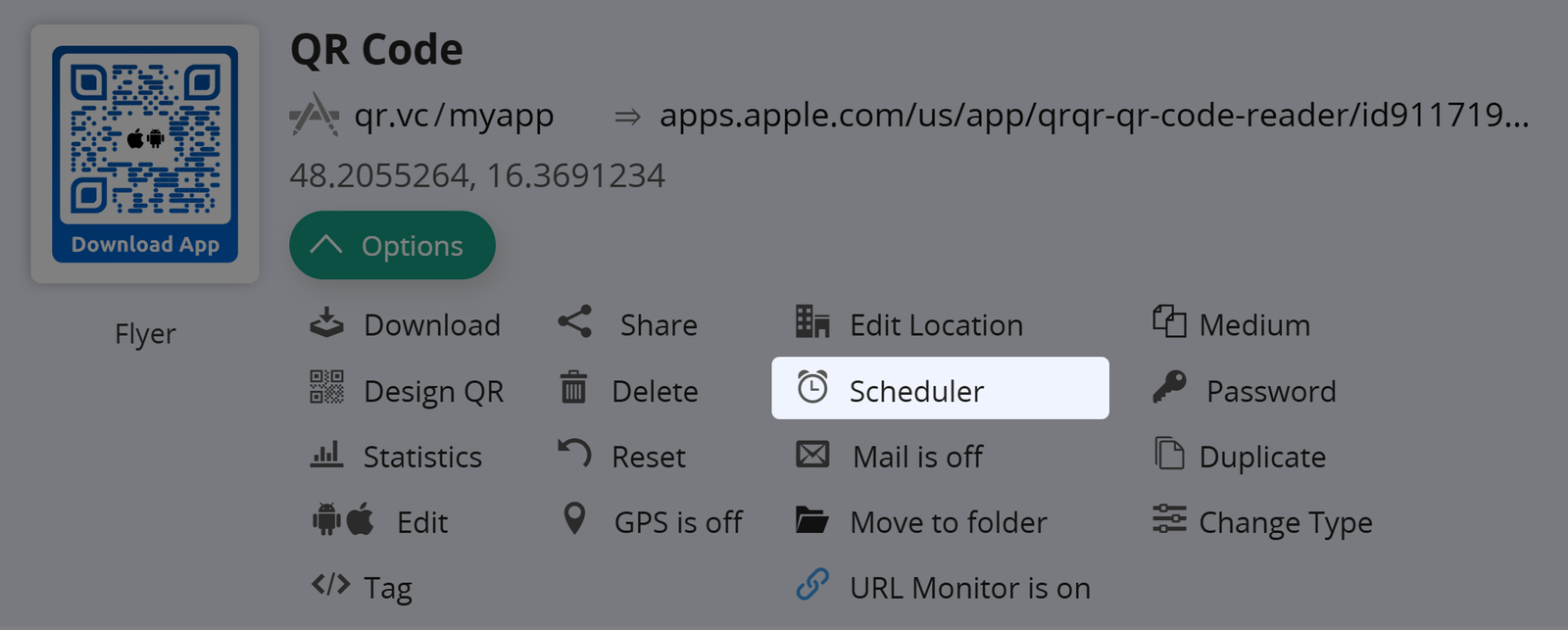
Use scheduled redirects by activating the scheduler. Get more information on scheduled redirects.
Mail Notifications
Have a notification E-Mail sent whenever this QR Code is scanned. You can choose where the notification should go.
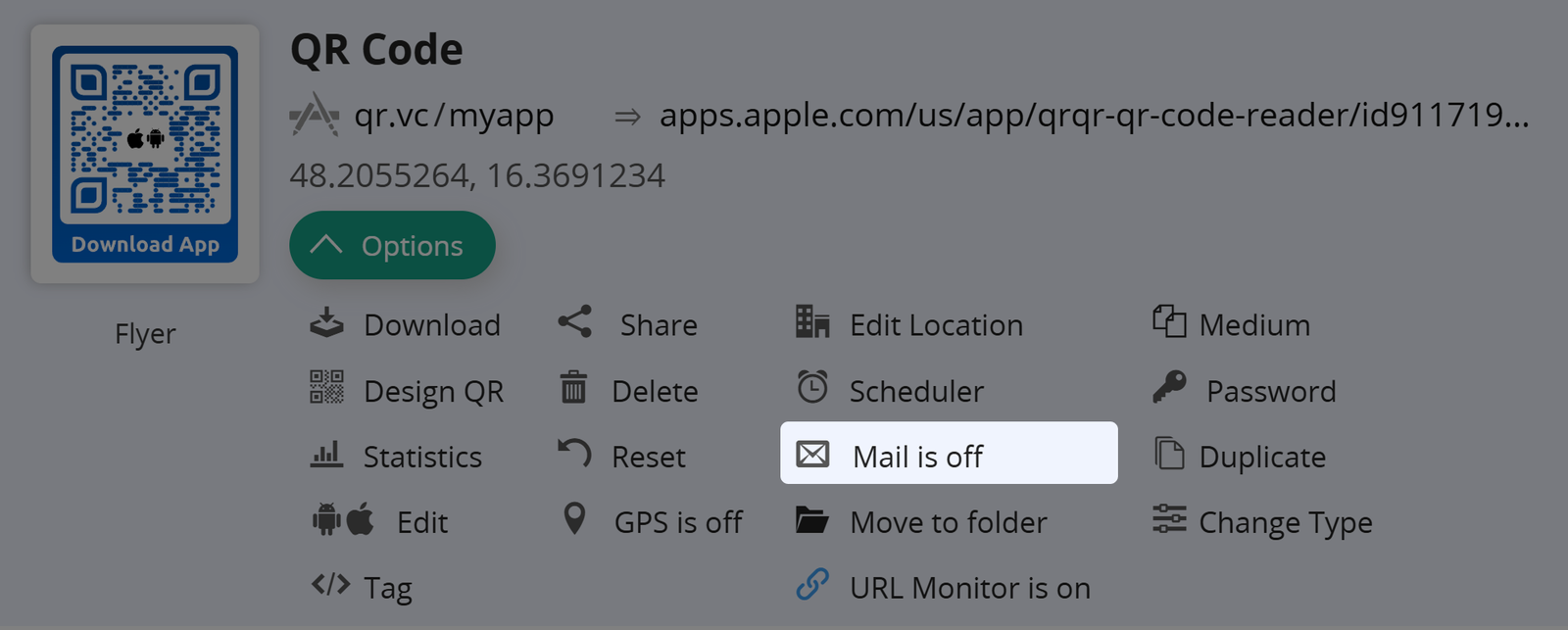
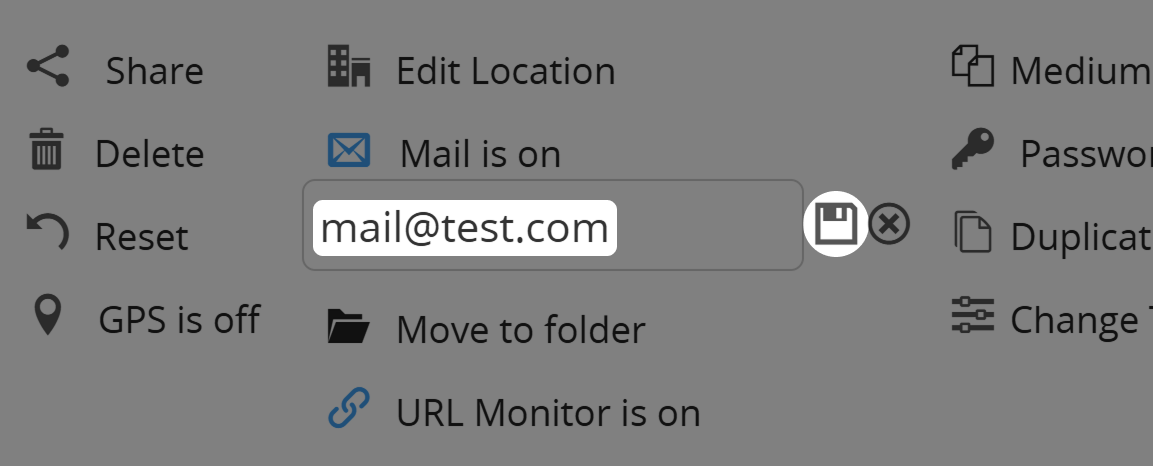
Enter a valid E-Mail address. Remember to save and confirm the address by clicking the link sent to there.
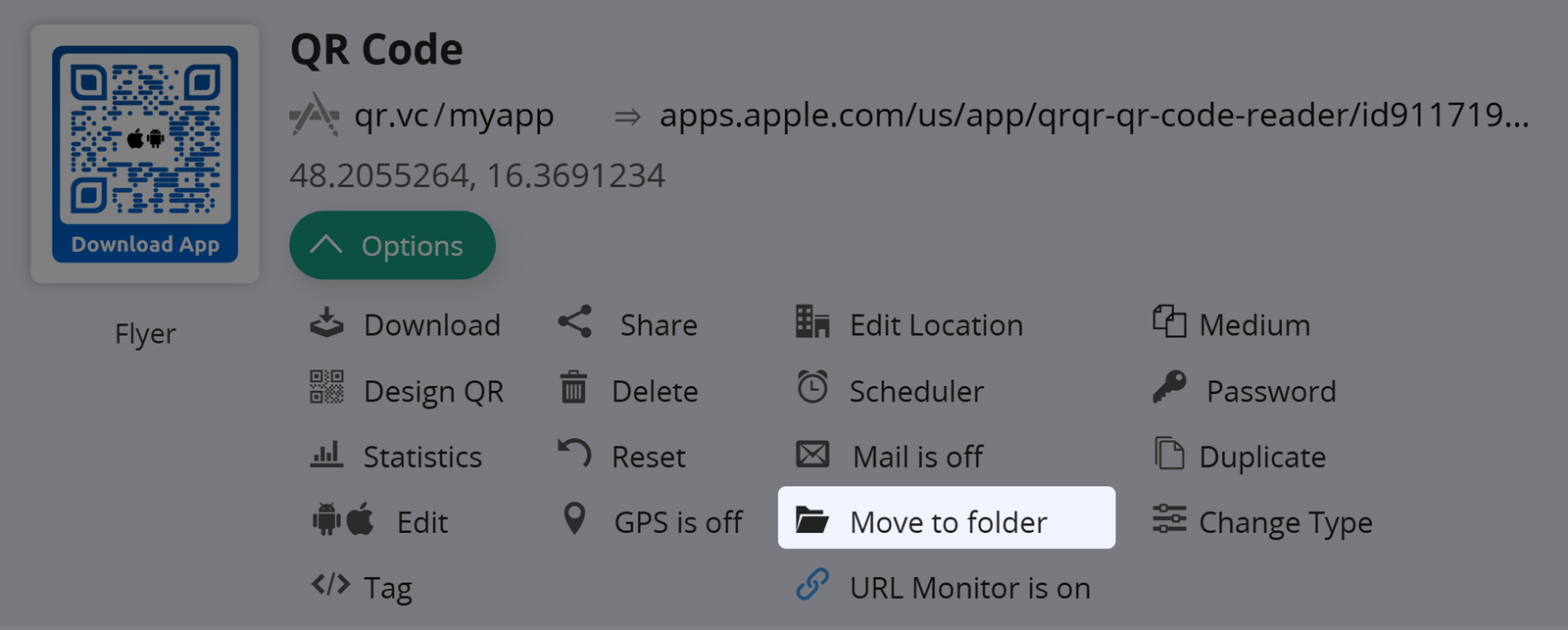
Move to folder
You can use Move to folder to move your QR Code to a certain folder or create a new one.
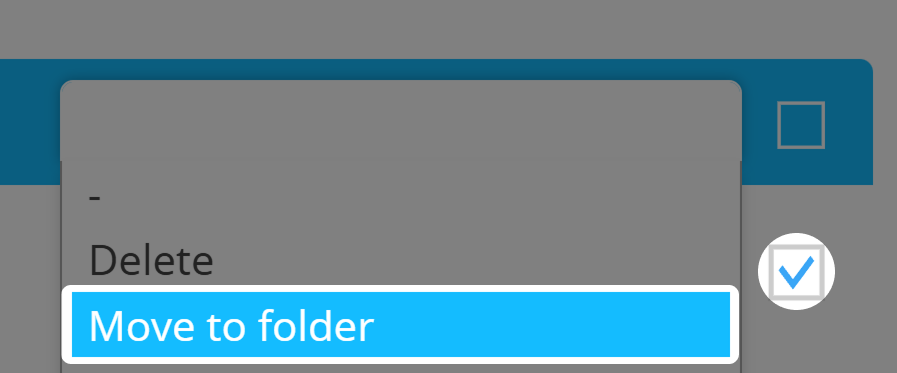
Alternatively, you can also mark QR Codes and choose Move to folder in the QR Code Action drop-down in the top-right corner of the QR Code overview.
URL Monitor
Deactivate the URL Monitor if you don't want to be informed if your target URL is unavailable. By default, this function is active.
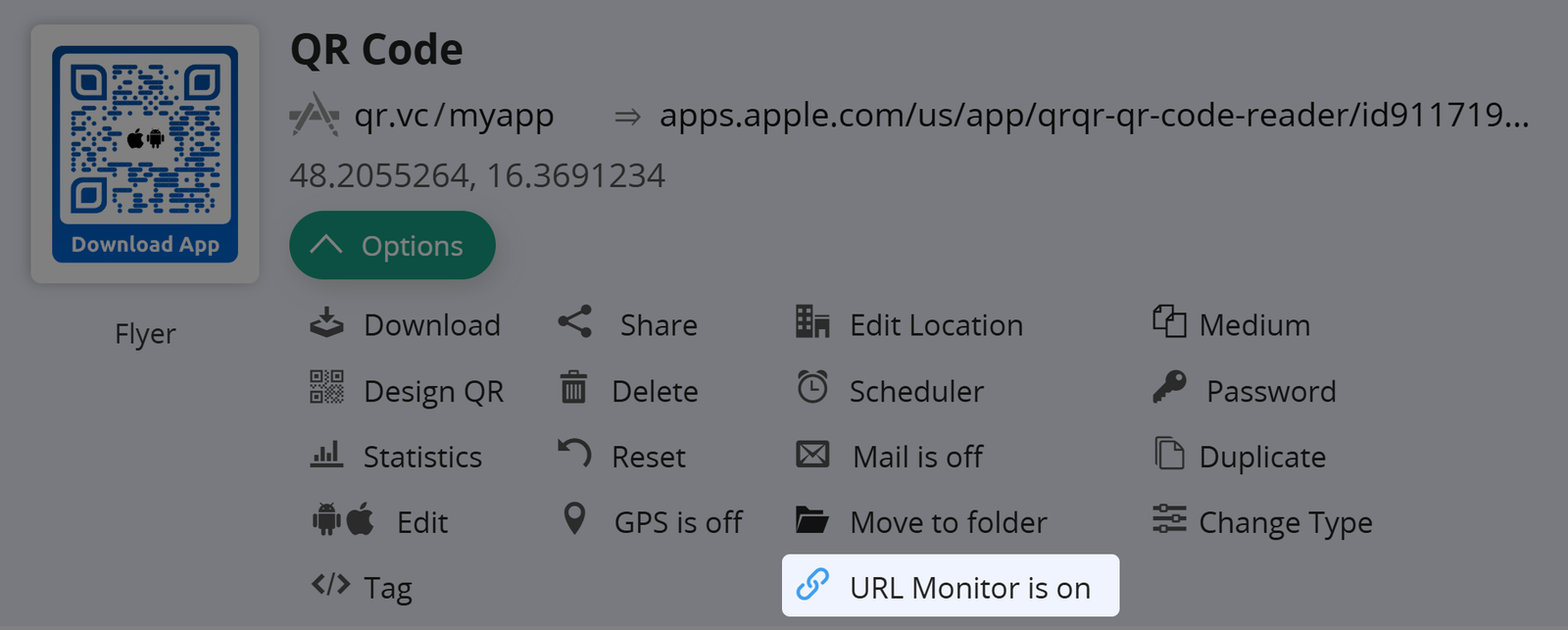
The URL monitor can be generally deactivated in your account options.
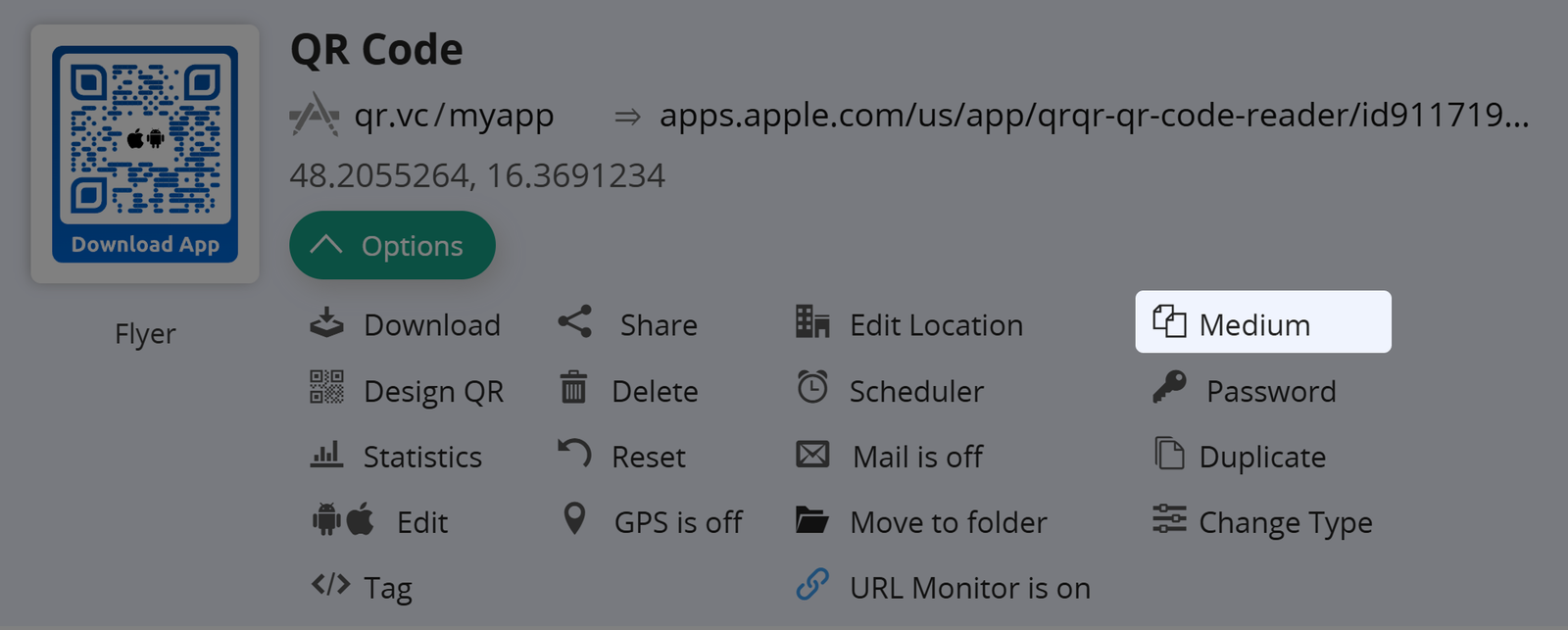
Medium
Set a value for the medium you plan to use a certain QR Code on. This is only for your internal organization and has no bearing on the QR Code or its functionality.
Password
You can password-protect your QR Codes. To do so, click Password in your QR Code's options. Once set, the QR Code will only forward to the target URL after the defined password has been entered.
There are no password requirements for QR Code passwords.
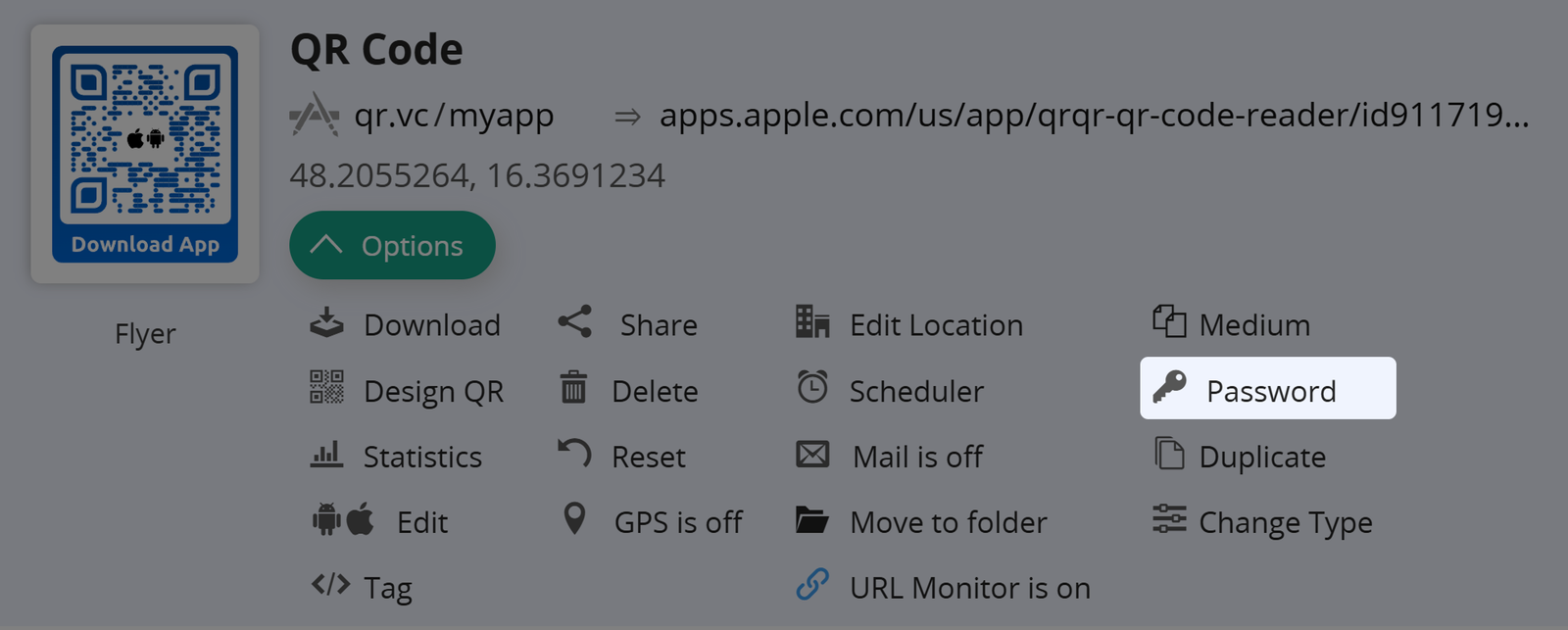
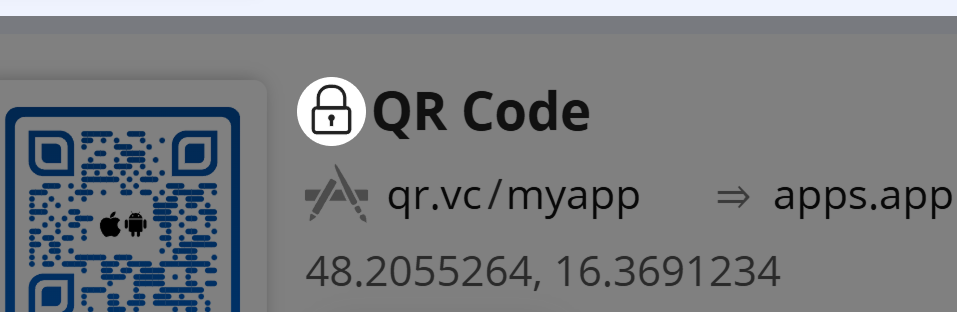
The below icon will be displayed to show a password-protected QR Codes.
Duplicate
You may duplicate any QR Code in your list by clicking Duplicate. A copy with a random Vanity-URL and without any designs applied will appear in your list of QR Codes.
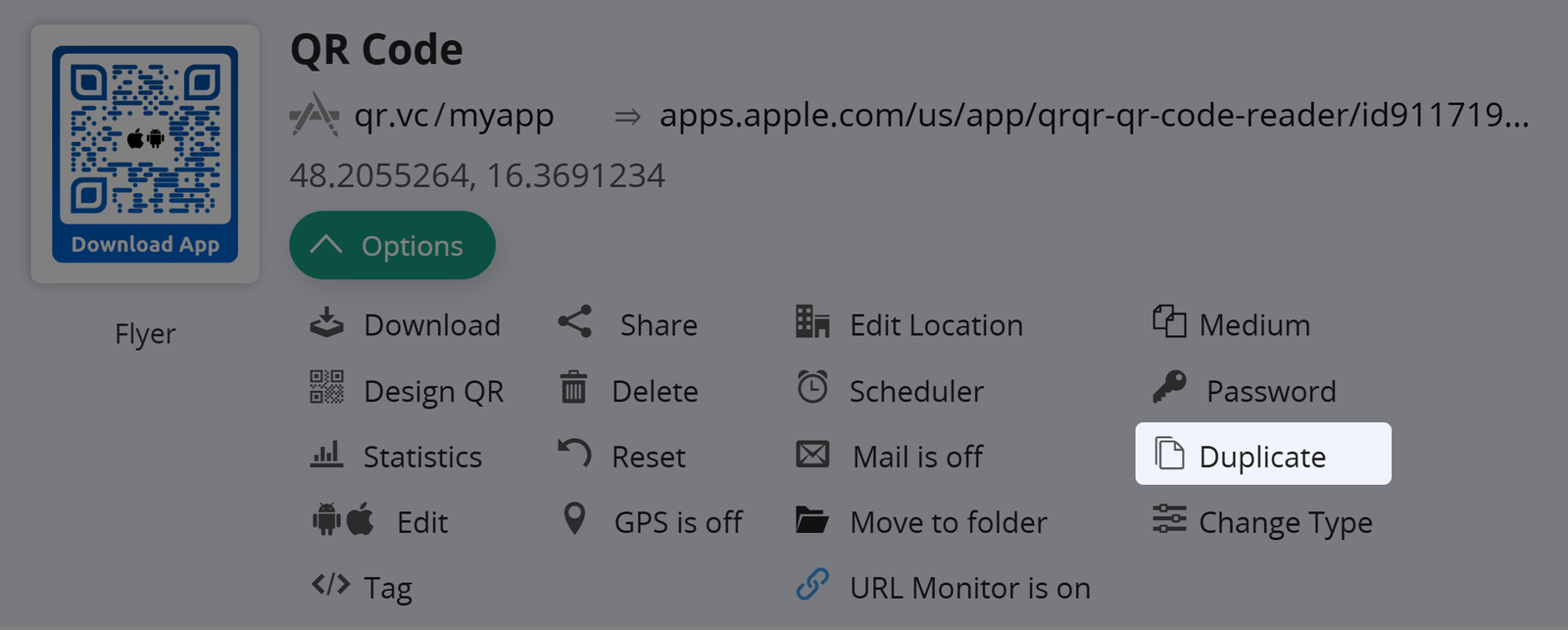
Remember that you cannot duplicate your QR Codes if you have no QR Codes left in your account's quota.
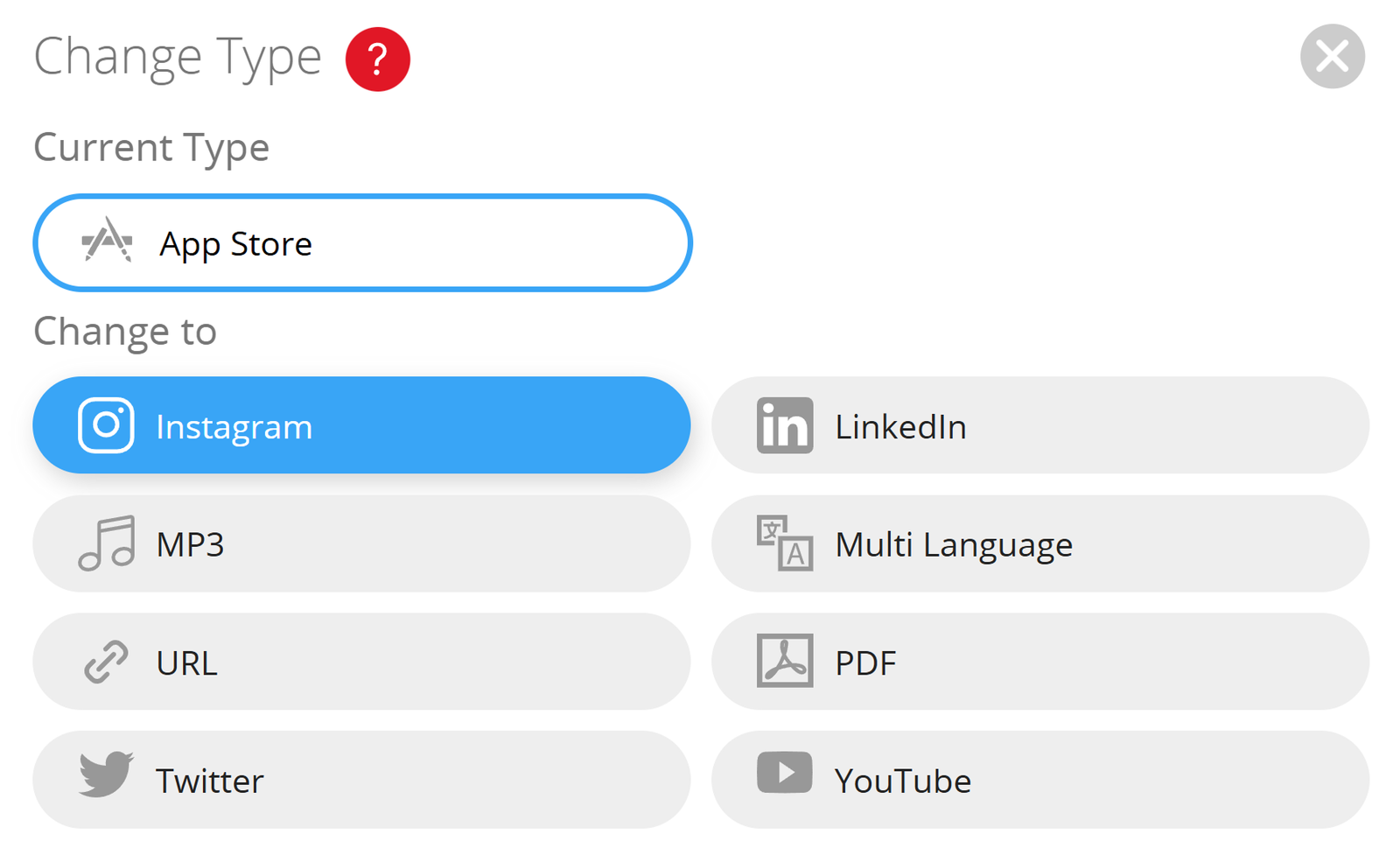
Change Type
Change a QR Code's type by using Change Type, and use it as you see fit.
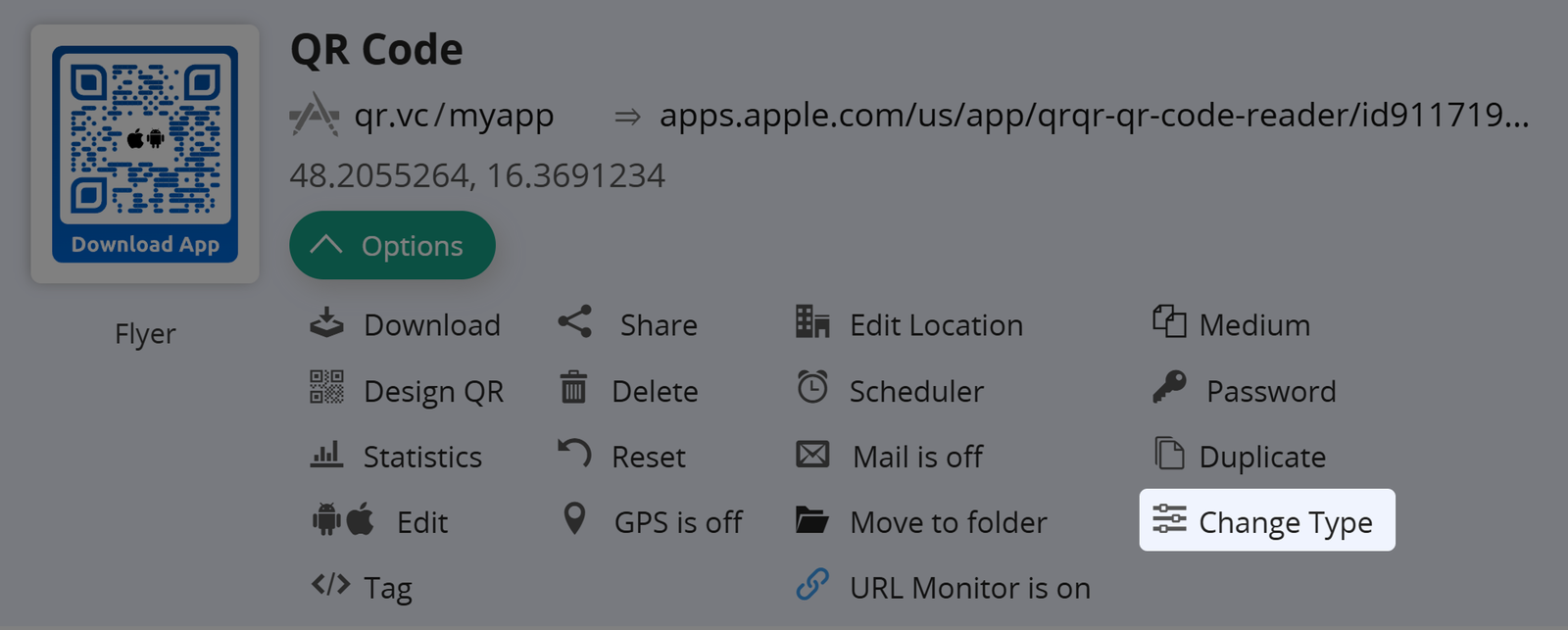
Some types of QR Codes might not be eligible for your account (e.g. Geo-Fencing or Multi-Country QR Codes).